

Available · Free · Open source
Automat-PDF Everyday PDF tasks, with no training and no Internet.
The free software that handles office PDF tasks on your own computer: payslips sent to each employee, PDFs compressed, merged, split, signed, protected and converted.
Windows 10 and 11 · 4.5 MB · no administrator rights
- Your documents stay on your computer
- Your originals are never modified
- Interface in French, with the translation of each button on this page
- Published by Eau sèche

At a glance
Automat-PDF at a glance
Automat-PDF is a free, open-source Windows application (in French) that handles office PDF tasks on your own computer: split payslips into one password-protected PDF per employee and e-mail each one, compress, merge, split, reorder, sign, stamp, redact, protect and convert PDFs. Documents never leave the computer, and the original files are never modified.
These tasks come up every week in an office; done by hand, they take time and let mistakes through. Automat-PDF does them on your computer, without your documents going through the Internet. It was designed for people who are not IT specialists: you say what you want to do, drop your file, click a single button, and the application shows where the result is. The original files are never modified. It is free, open-source software, with no subscription and no advertising.
- Price
- Free (no subscription, no advertising, no limit)
- Licence
- Open source, MIT licence
- System
- Windows 10 and Windows 11, 64-bit
- Interface language
- French
- Internet
- Not needed to work
- Installation
- No administrator rights needed
- Version
- 0.2.0 · 6 November 2026 · 4.5 MB
- Publisher
- Eau sèche
Getting started
How it works, in 3 steps
-
Say what you want to do
The application opens on “Que voulez-vous faire ?” (What do you want to do?). Pick a task, or type it in your own words, in French: “signer” (sign), “alléger” (lighten), “bulletins de paie” (payslips)…

-
Give it your file
Drag it into the window, or right-click it in Windows Explorer. Dropped on the home screen, it brings up the tools that fit.

-
Create, then open the result
A single button starts the job. The new file is offered next to the original, then a box offers Ouvrir (Open) and Afficher dans le dossier (Show in folder).
Screenshots of version 0.2.0, taken in the real application (in French); the names, amounts and addresses they show are fictitious.
Why Automat-PDF
Designed for offices, not for IT experts
Free
Open-source software, with no subscription, no advertising, and no limit on the number or size of files.
Confidential
Your documents stay on your computer: nothing is sent over the Internet, except the emails you decide to send.
No training needed
Say what you want to do, drop your file, click a single button: the application guides you at every step.
No risk to your originals
Each result is a new file, saved next to the original.
Payslips in minutes
One PDF per employee, named, protected by their own password and sent to the right address, with checks at every step.
The flagship workflow
Send each employee their own payslip
One PDF per employee, named, protected by their own password and sent to the right address: in a few minutes instead of several hours by hand.
Every month-end, the payroll software produces a single PDF with every employee's payslip. Then, for each person, their pages have to be found, saved as a file in their name, protected, and sent to the right address. By hand this takes hours, and one mistake is enough for an employee to receive a colleague's payslip: that is a personal data leak.
Séparer par personne (Split by person) does the whole job in 5 numbered steps, checks anything doubtful by itself, and lets you review before creating and sending.
Step by step
-
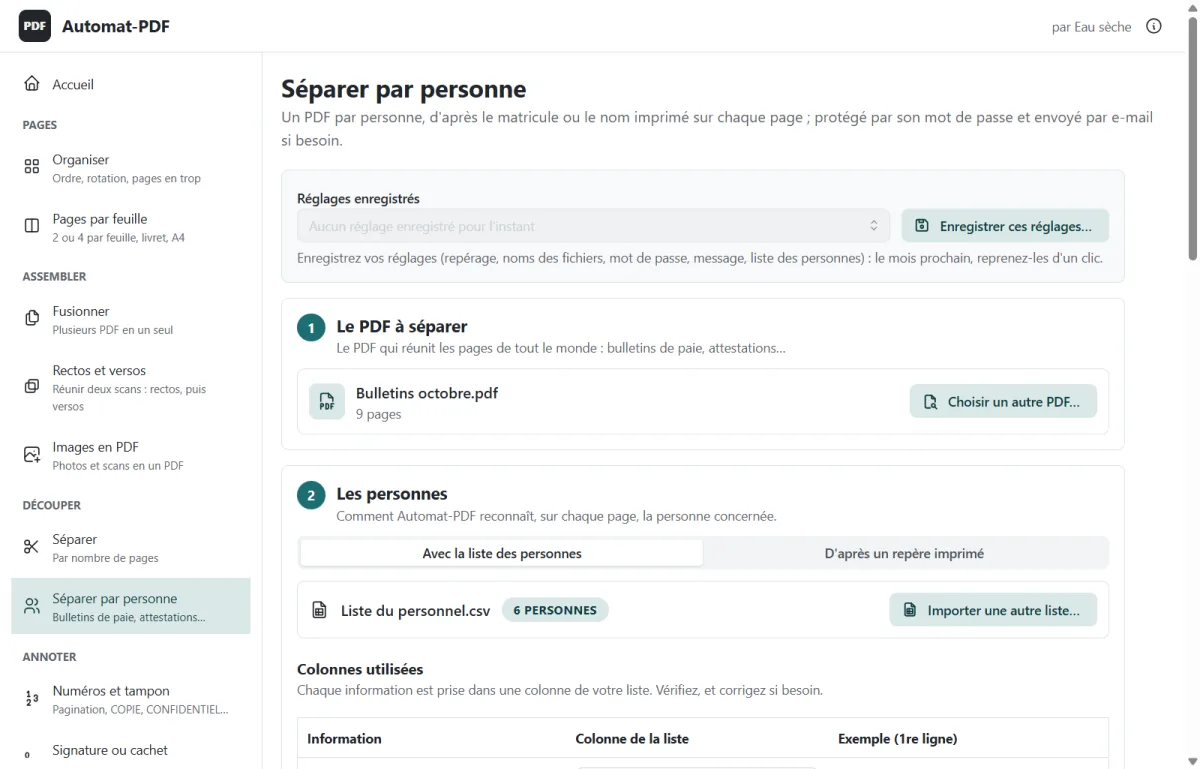
The PDF to split
Drag the payslips PDF into the window. Automat-PDF reads the text of each page.
-
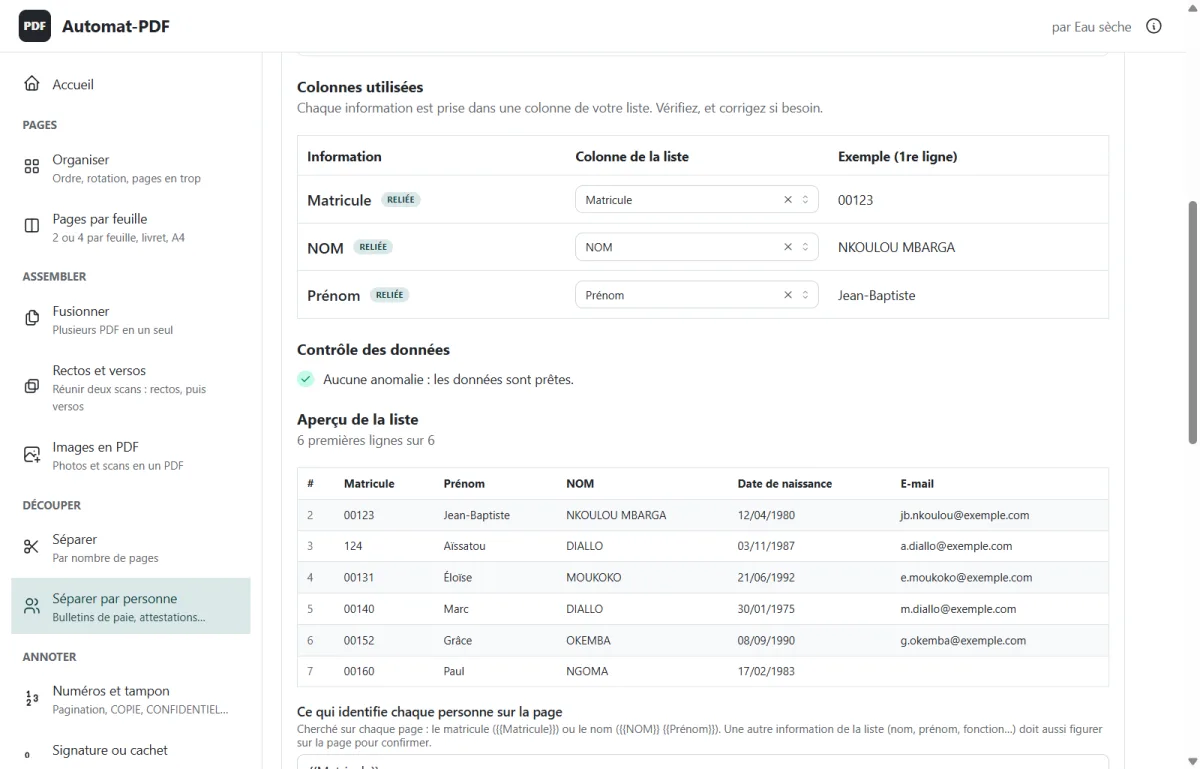
The people
Drag in the staff list (Excel or CSV, one row per person). Automat-PDF links each piece of information to the right column and checks the list: duplicates, malformed email addresses, empty cells.
-
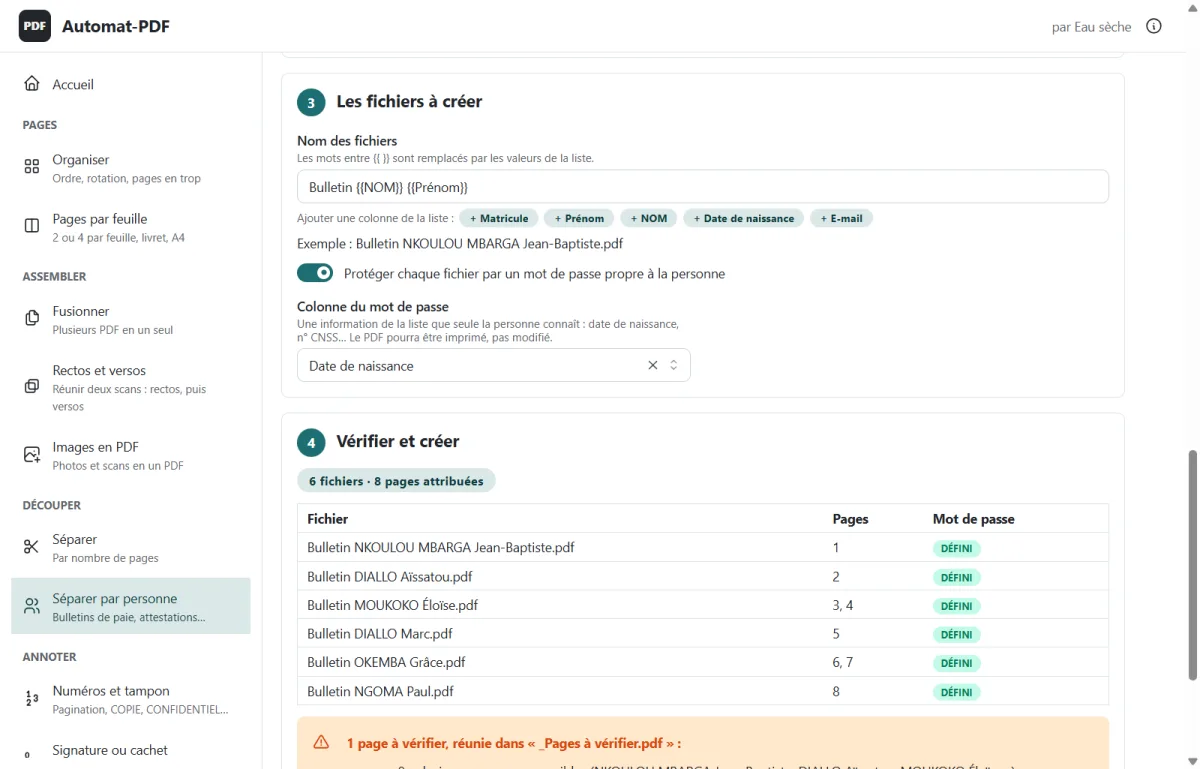
The files to create
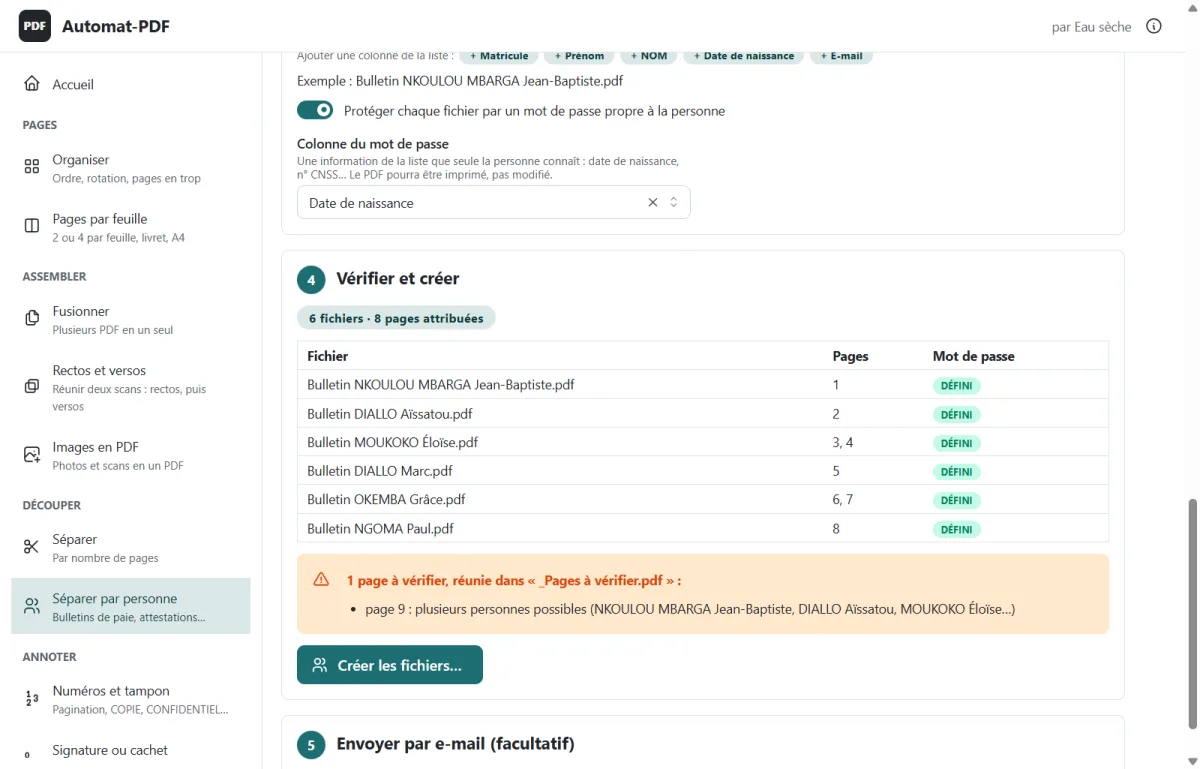
Each file name comes from the list (“Bulletin NKOULOU MBARGA Jean-Baptiste.pdf”): add a column in one click and an example is shown. Turn on protection, then choose the password column, such as the date of birth.
-
Check, then create
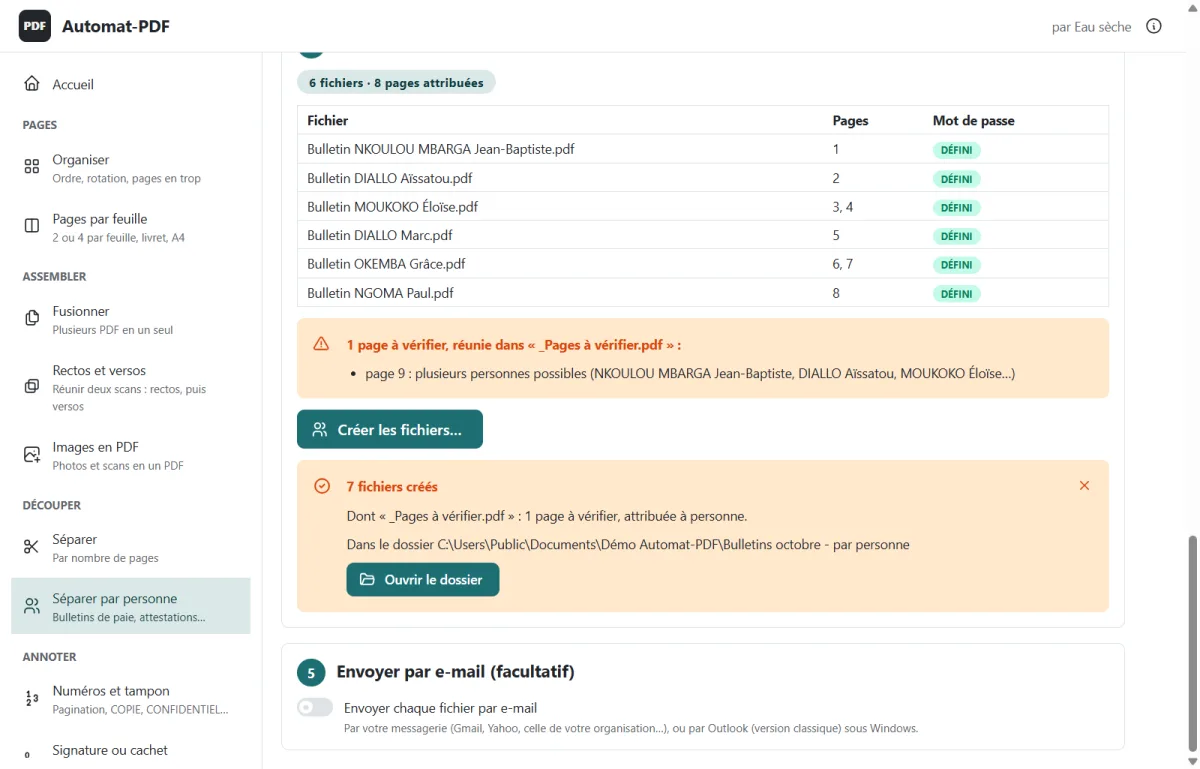
The table shows each file, its pages and the status of its password. Doubtful pages are flagged. Click Créer les fichiers… (Create the files…).
-
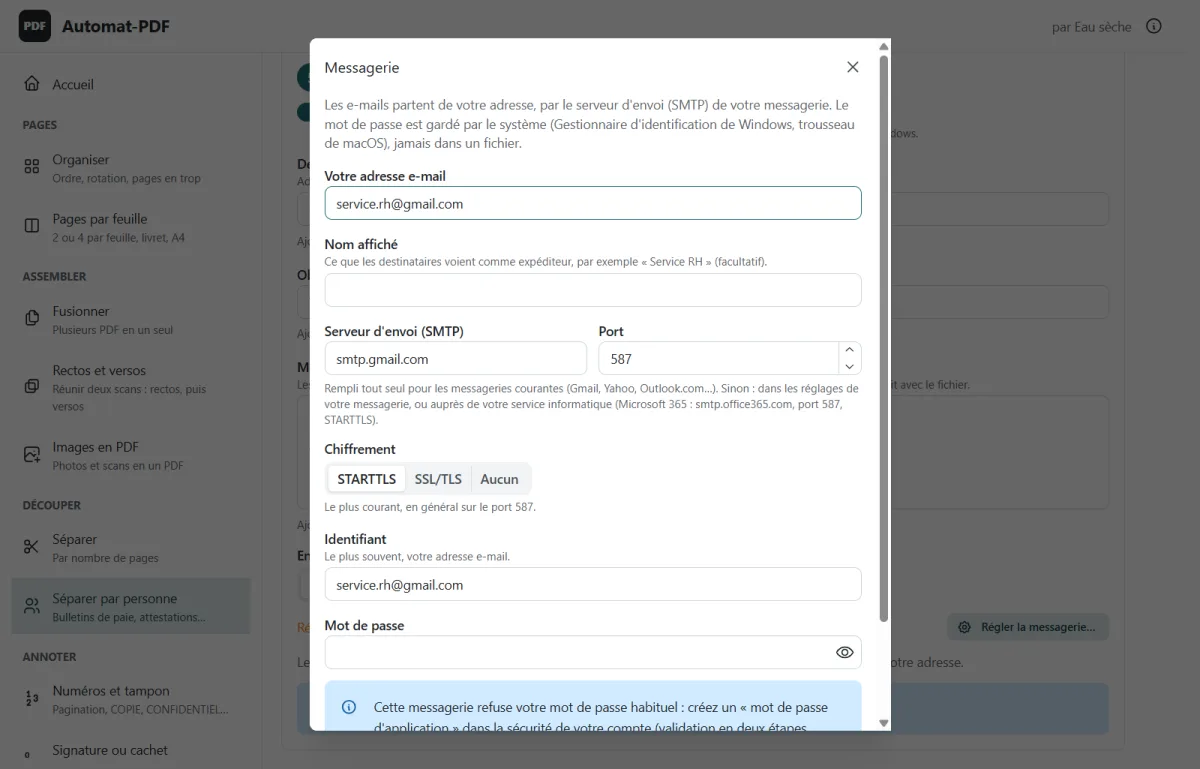
Send by email (optional)
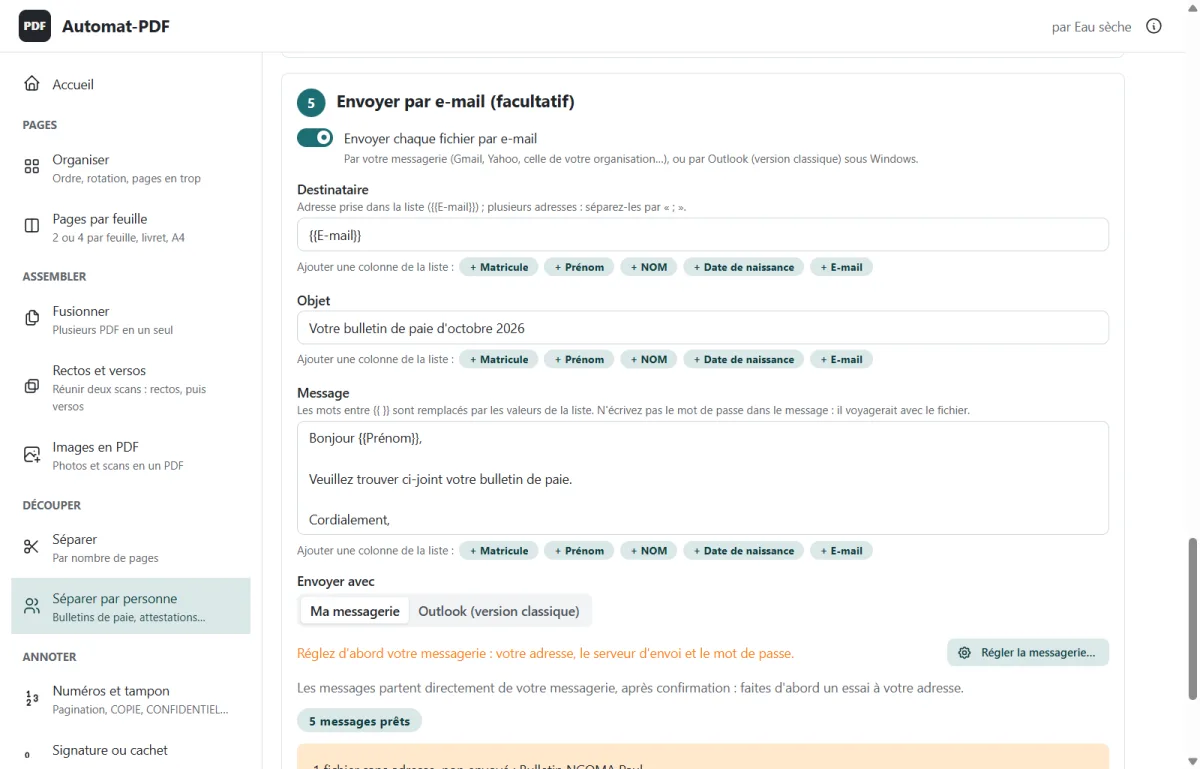
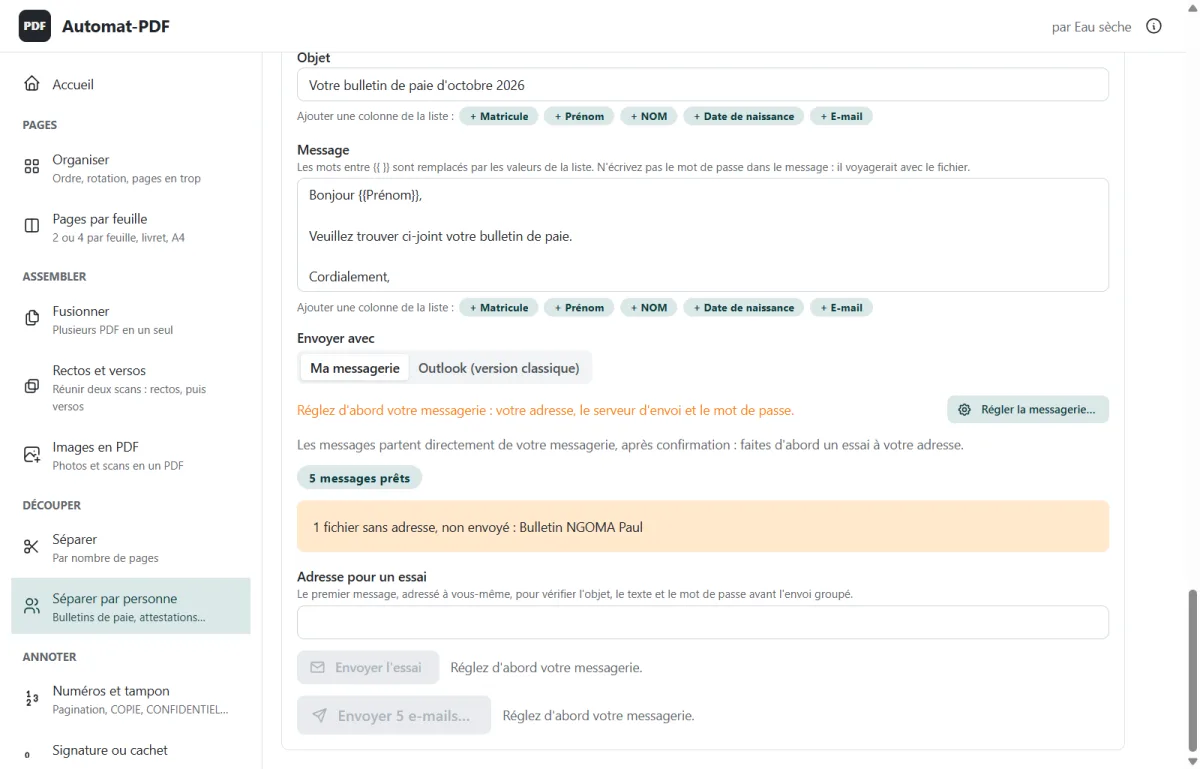
Write the subject and the message once (“Bonjour {{Prénom}}, …”). First send a test to your own address, then the bulk send, after confirmation. Through Gmail, Yahoo, your organisation's mail service, or Outlook.
The checks
- A page is only assigned to a person if their staff number (or name) and another of their details appear on the page.
- Doubtful pages (summary, page with no identifier) are sent to no one: they are gathered in “_Pages à vérifier.pdf”.
- The file's password does not travel with it: it is not put in the message.
- Nothing is sent without confirmation; files with no address are flagged.
- The mailbox password is kept by Windows, never in a file.
The result
A folder with one PDF per person, named and protected by their password, sent to the right address if you wish. The following month, Réglages enregistrés (Saved settings) brings everything back in one click.
- Works for any document where each page concerns an identifiable person: payslips, certificates, statements, notices…
- Without a list, Automat-PDF can rely on a marker printed on each page (“Matricule :”, the staff number).
- The PDF must contain text (as PDFs produced by payroll software do): a scanned PDF without text recognition can only be split by number of pages.
- Gmail and Yahoo require an “app password”; with Microsoft 365, sending through Outlook (classic version) is often simplest.
What it solves
Your PDF problems, one by one
Each tool starts from a situation you know. Open a card to see the solution, step by step. The application's buttons are in French: their translation is given in brackets.
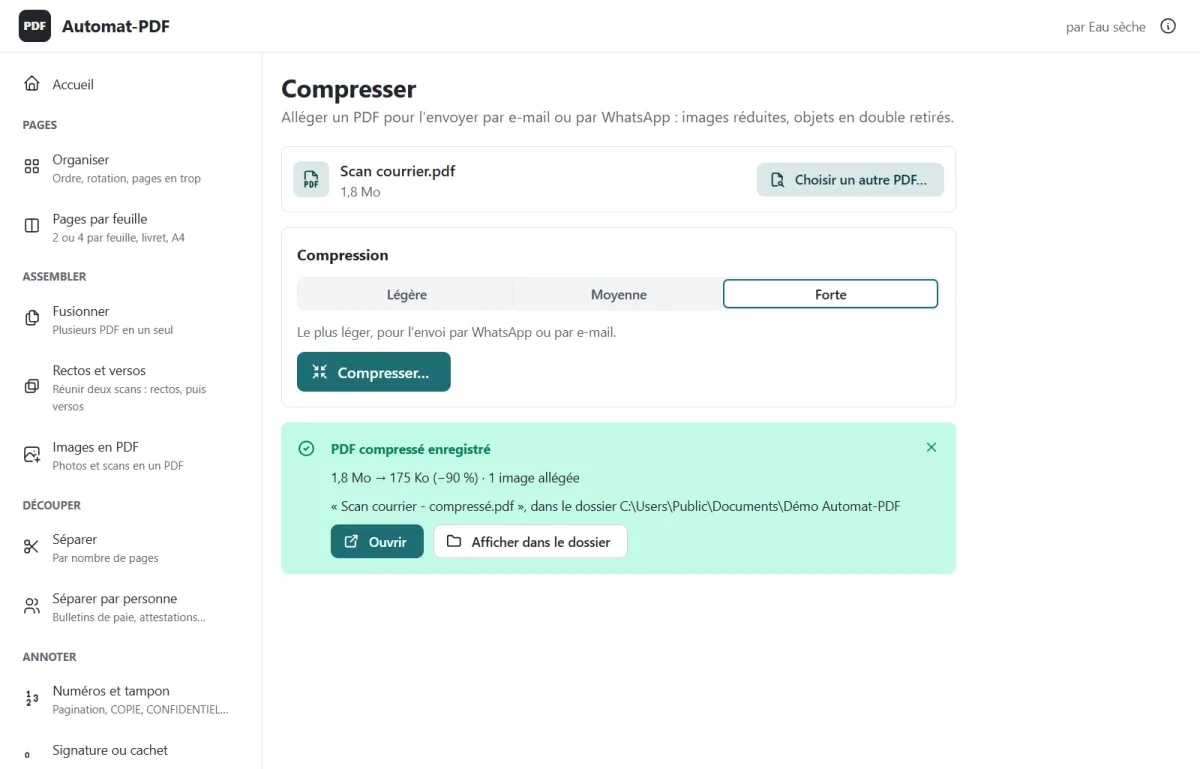
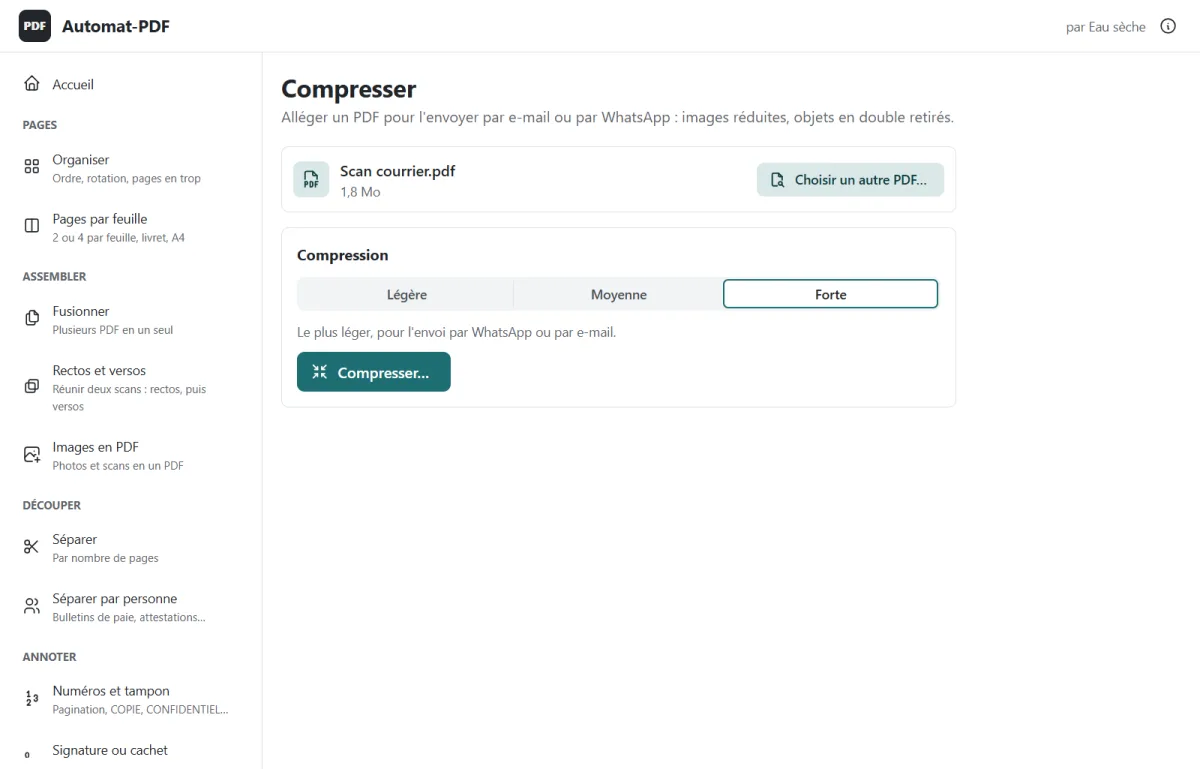
My PDF is too heavy for WhatsApp or email A 1.8 MB scan brought down to 175 KB, still readable. Tool: Compresser (Compress)
The situation. A scanned document weighs several megabytes: email rejects it, WhatsApp takes a long time to send it, and a recipient on a mobile connection struggles to open it.
The solution. Compresser reduces images to a useful resolution and removes duplicates, without touching the text.
Step by step
- Drop the PDF on Compresser (or right-click → Automat-PDF → Compresser).
-
Choose the level: Légère (light, print quality), Moyenne (medium, the best compromise), Forte (strong, the lightest, for WhatsApp or email).
-
Compresser…, then Ouvrir (Open) to check.
The result. On a scanned test page, at the Forte level: 1.8 MB → 175 KB, i.e. 90% less. The gain depends on the document.
Good to know
- If the PDF is already compact, Automat-PDF says so and keeps it as it is.
I need to gather several documents into one PDF Several PDFs into one, in the order you want, with no loss of quality. Tool: Fusionner (Merge)
The situation. An application file, a response to a tender, an expense report with its receipts: several PDFs to send as a single file, in the right order.
The solution. Fusionner joins them in the chosen order; pages are copied as they are.
Step by step
- Drop the PDFs on Fusionner (or select them in Explorer, right-click → Automat-PDF → Fusionner).
-
Put them in order with the arrows.
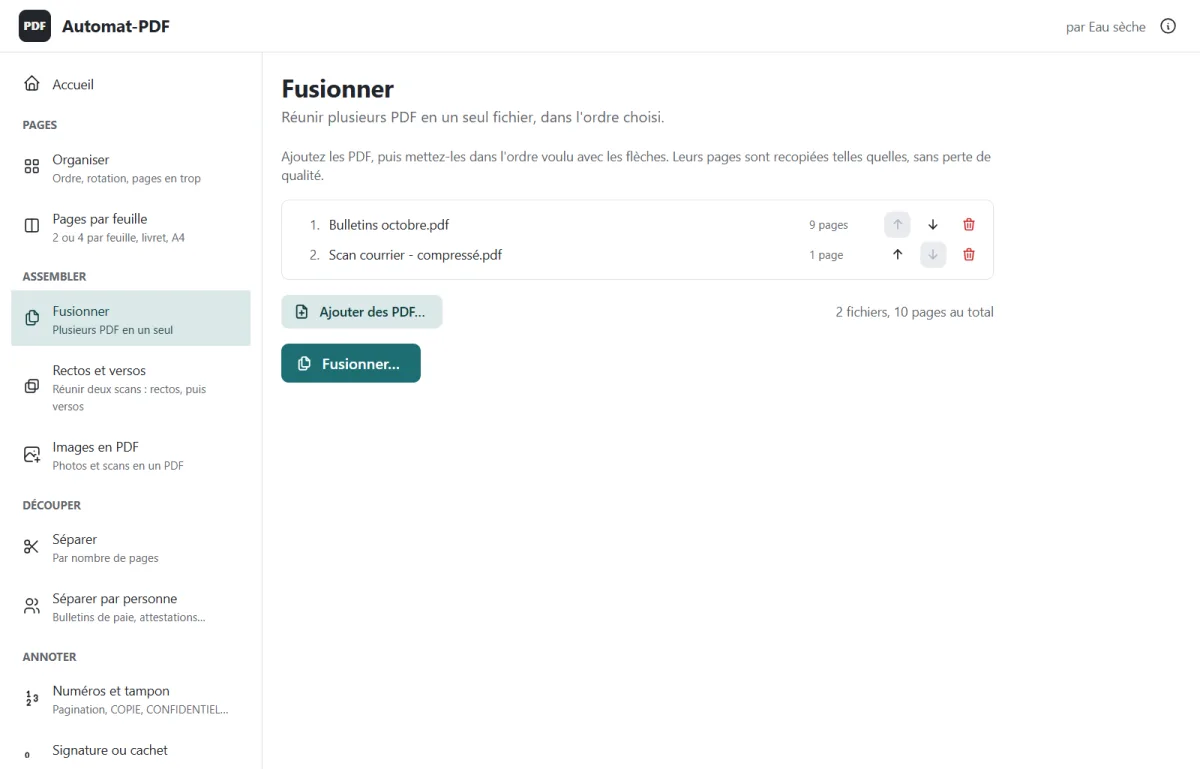
- Fusionner… (Merge…)
Good to know
- To mix pages from several files, use Organiser (Organise).
My pages are out of order, upside down, or there are too many Every page as a thumbnail: move them, rotate them, remove them. Tool: Organiser (Organise)
The situation. A scan comes out with a page upside down, a blank page in the middle, or in the wrong order.
The solution. Organiser shows every page, from one or several PDFs, as thumbnails.
Step by step
- Drop one or several PDFs on Organiser.
-
Drag a page to move it; rotate it, delete it or extract a selection; double-click to see it full size; Annuler (Undo) reverses the last action.
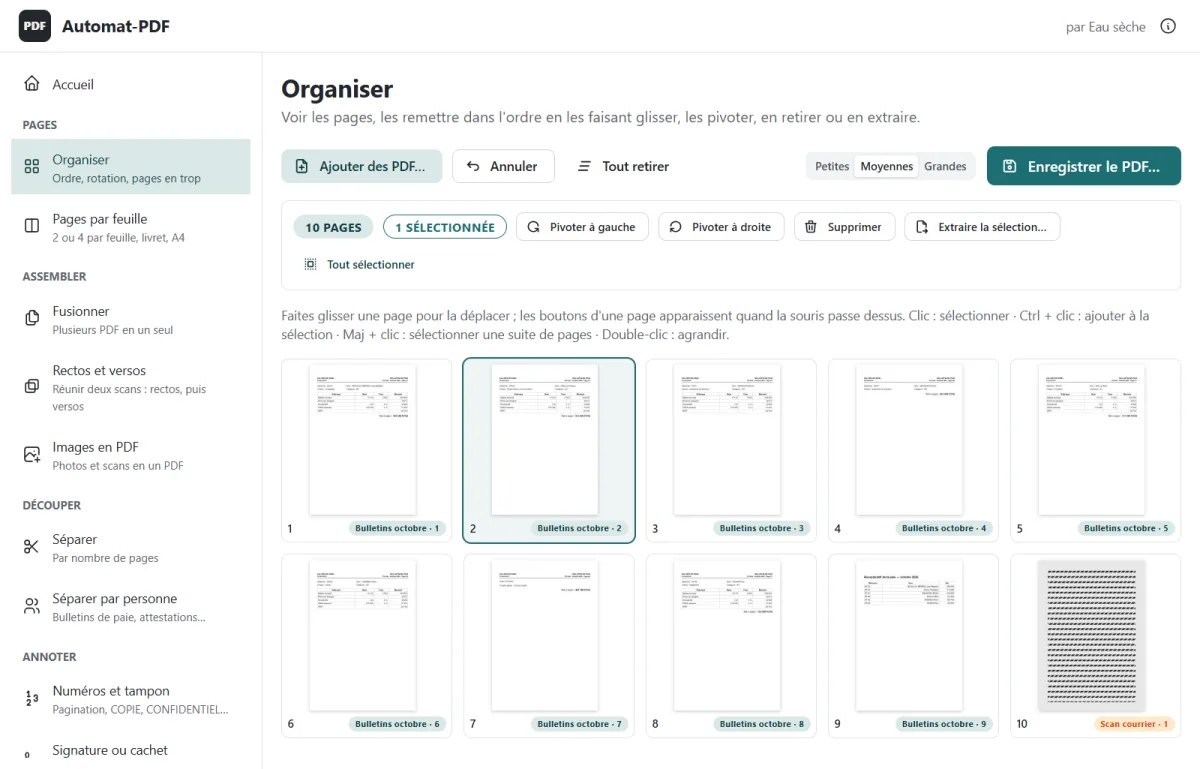
- Enregistrer le PDF… (Save the PDF…)
My scanner only scans one side of the sheet Fronts and backs scanned separately, put back in order page by page. Tool: Rectos et versos (Fronts and backs)
The situation. For a double-sided document, you scan all the fronts, then turn the stack over and scan the backs: two PDFs, with the backs often in reverse order.
The solution. Rectos et versos puts everything back in order: front 1, back 1, front 2, back 2…
Step by step
- Choose the PDF of the fronts, then the one of the backs (or drop both).
- Leave “Versos dans l'ordre inverse” (backs in reverse order) ticked if you turned the stack over; the preview shows the start of the document.
- Réunir rectos et versos… (Combine fronts and backs…)
I took photos of documents with my phone Your photos in one clean PDF, turned the right way up automatically. Tool: Images en PDF (Images to PDF)
The situation. Receipts, an identity document, photographed pages: you need a clean PDF to send or to file.
The solution. Images en PDF puts each photo on a page; photos taken sideways are turned the right way up.
Step by step
- Drop the photos (JPG, PNG, WEBP, TIFF, BMP, GIF) on Images en PDF.
-
Put them in order by dragging them; choose A4 pages or pages the size of each photo.
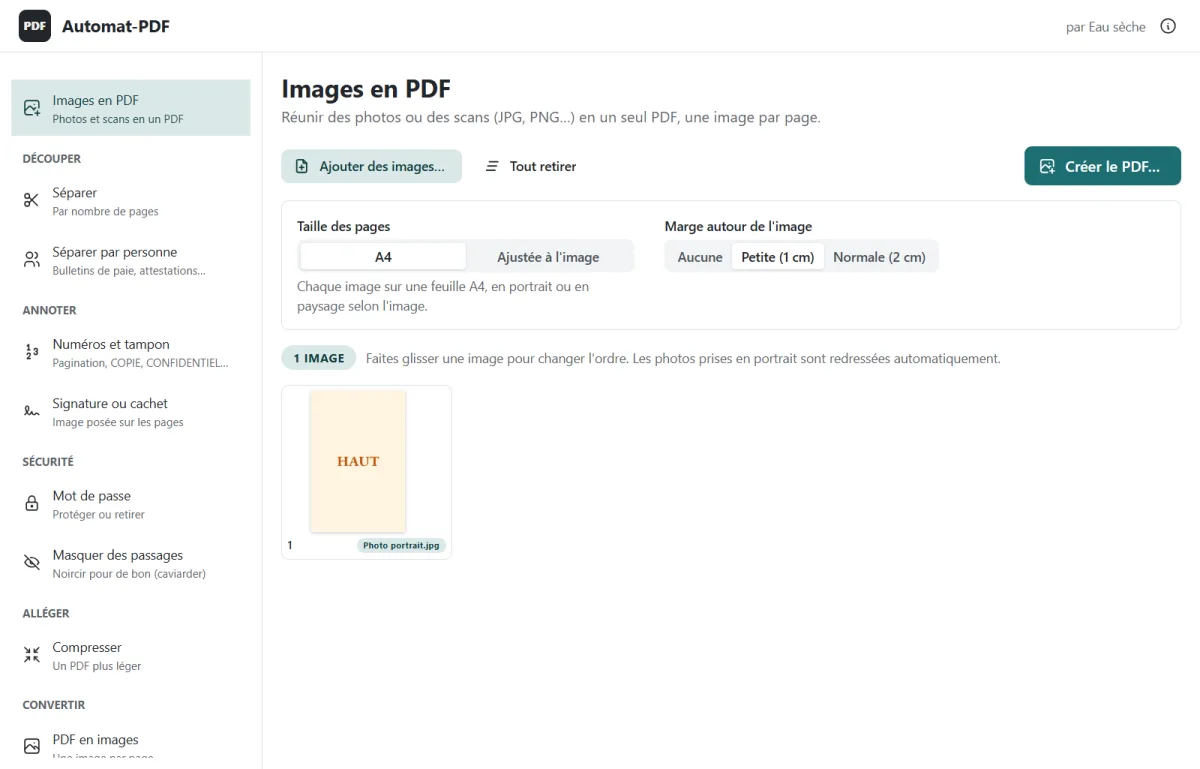
- Créer le PDF… (Create the PDF…)
I need to sign or stamp a document without printing it Your signature or the company stamp, placed where you want. Tool: Signature ou cachet (Signature or stamp)
The situation. Print, sign by hand, scan, send back: three steps for a signature or a stamp.
The solution. Signature ou cachet places the image of your signature or stamp where you choose.
Step by step
- Drop the PDF, then the image of the signature or stamp (a PNG with a transparent background gives the best result).
-
Drag the image into place; the handle at the bottom right sets its size.
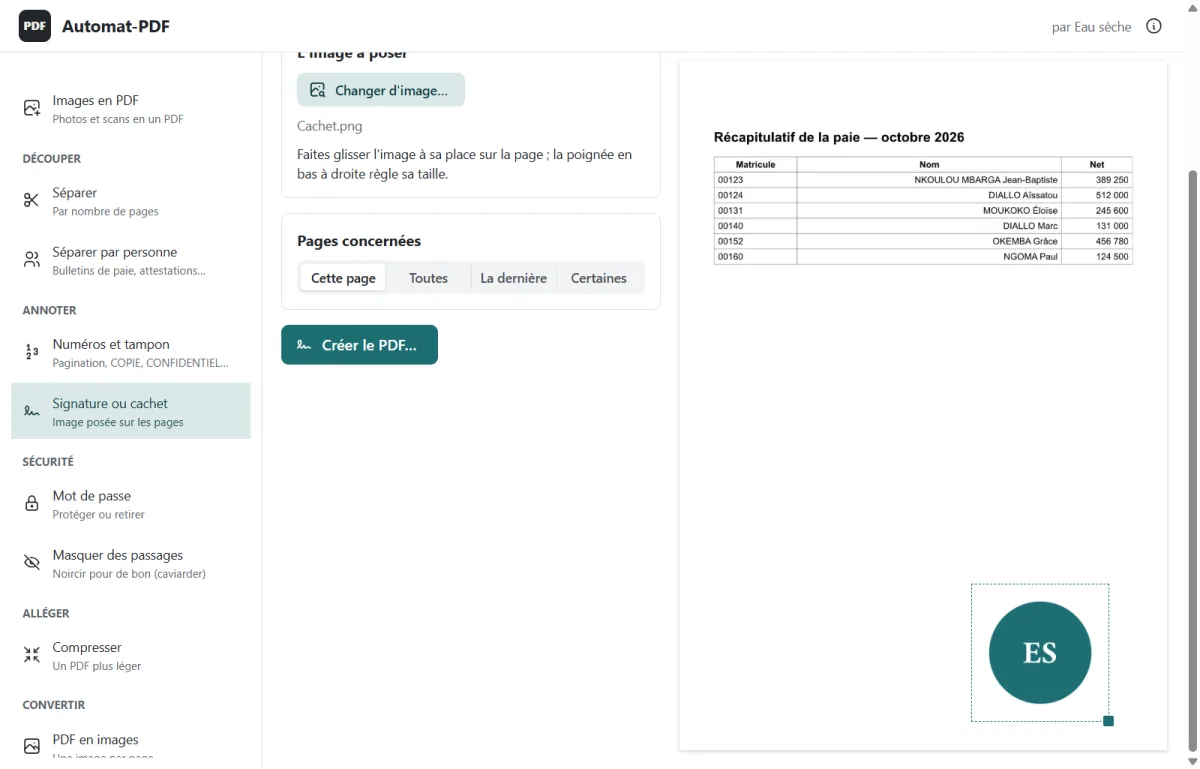
- Choose the pages (this one, the last one, all, some), then Créer le PDF… (Create the PDF…).
Good to know
- This is the image of a signature, as on a scanned document: it is not a certified electronic signature.
I need to number a file, or mark it COPY or CONFIDENTIAL Page numbers and stamp, with an accurate preview before the file is created. Tool: Numéros et tampon (Numbers and stamp)
The situation. A report to paginate, a copy to tell apart from the original, an invoice to mark “PAID”.
The solution. Numéros et tampon adds page numbers and a stamp, or a watermark, on the chosen pages.
Step by step
- Drop the PDF on Numéros et tampon.
-
Set the numbers (“Page 3 sur 12”, bottom centre…) and/or the stamp (COPIE, CONFIDENTIEL, PAYÉ or your own text), its colour and its intensity.
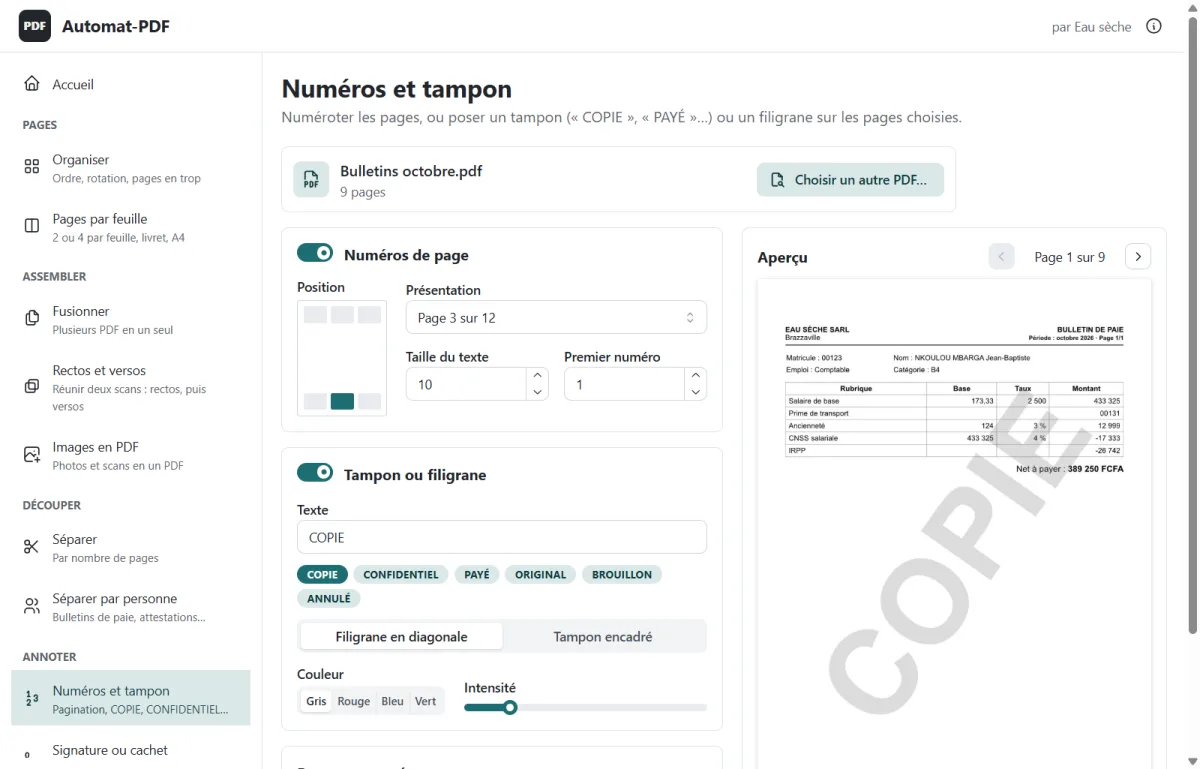
- Choose the pages concerned, check the preview, then Créer le PDF… (Create the PDF…).
I need to share a document without revealing some information What is redacted is really removed from the file, not just hidden. Tool: Masquer des passages (Redact passages)
The situation. A payslip to provide to an organisation, a contract to share: some data must not be readable. A black rectangle drawn on top is not enough: the text often stays underneath, and selecting it is enough to copy it.
The solution. Masquer des passages blacks out the areas you draw and removes from the file the text, images and drawings underneath.
Step by step
- Drop the PDF on Masquer des passages.
-
With the mouse, draw a rectangle over each passage to redact, page by page.
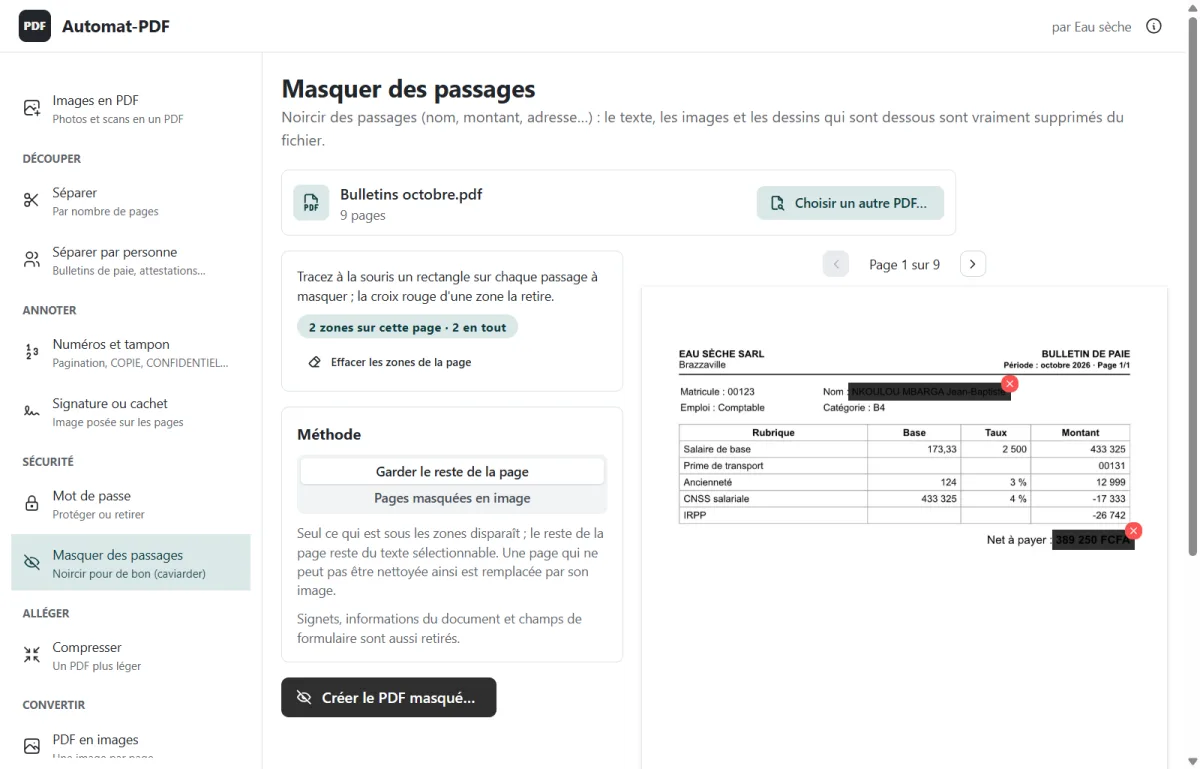
- Choose the method (“Garder le reste de la page”, keep the rest of the page, or “Pages masquées en image”, redacted pages as images, the safest), then Créer le PDF masqué… (Create the redacted PDF…).
Good to know
- Bookmarks, document information and form fields are removed too.
Only the recipient should open this document A password asked at opening, and the rights you choose. Tool: Mot de passe (Password)
The situation. A sensitive document sent by email can be forwarded or opened by mistake.
The solution. Mot de passe protects the PDF with a password asked at opening (AES-256 encryption) and sets what it allows once opened: printing, copying the text, editing. It can also remove the password from a PDF whose password you know.
Step by step
- Drop the PDF on Mot de passe.
-
Type the password twice, then choose the rights.
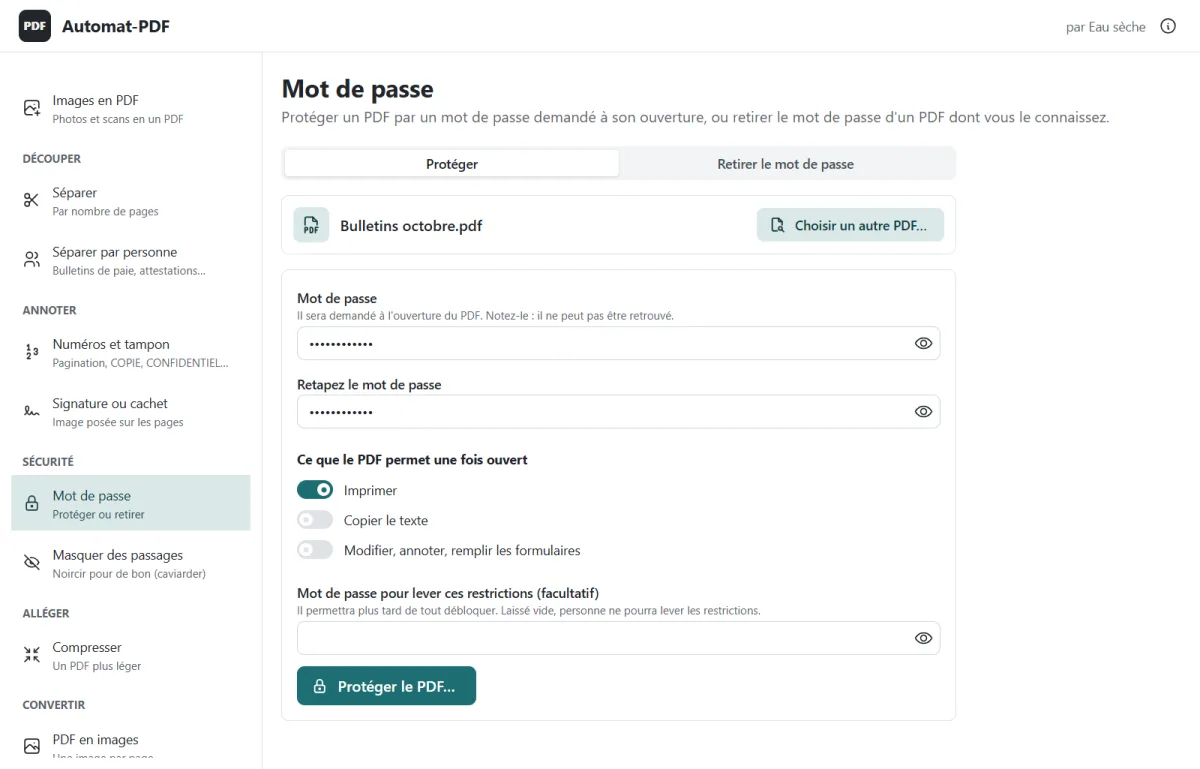
- Protéger le PDF… (Protect the PDF…); share the password by another means than email.
I need to convert Word, Excel or PowerPoint documents to PDF Several documents converted at once, even without Microsoft Office. Tool: Office en PDF (Office to PDF)
The situation. A series of documents to send as PDFs, one by one from Word or Excel: it takes time, and not every computer has Microsoft Office.
The solution. Office en PDF converts several documents at once, each into a PDF of the same name. Without Office, the application offers to install LibreOffice, which is free, in one click.
Step by step
-
Drop the documents on Office en PDF (or right-click → Automat-PDF → Convertir en PDF).
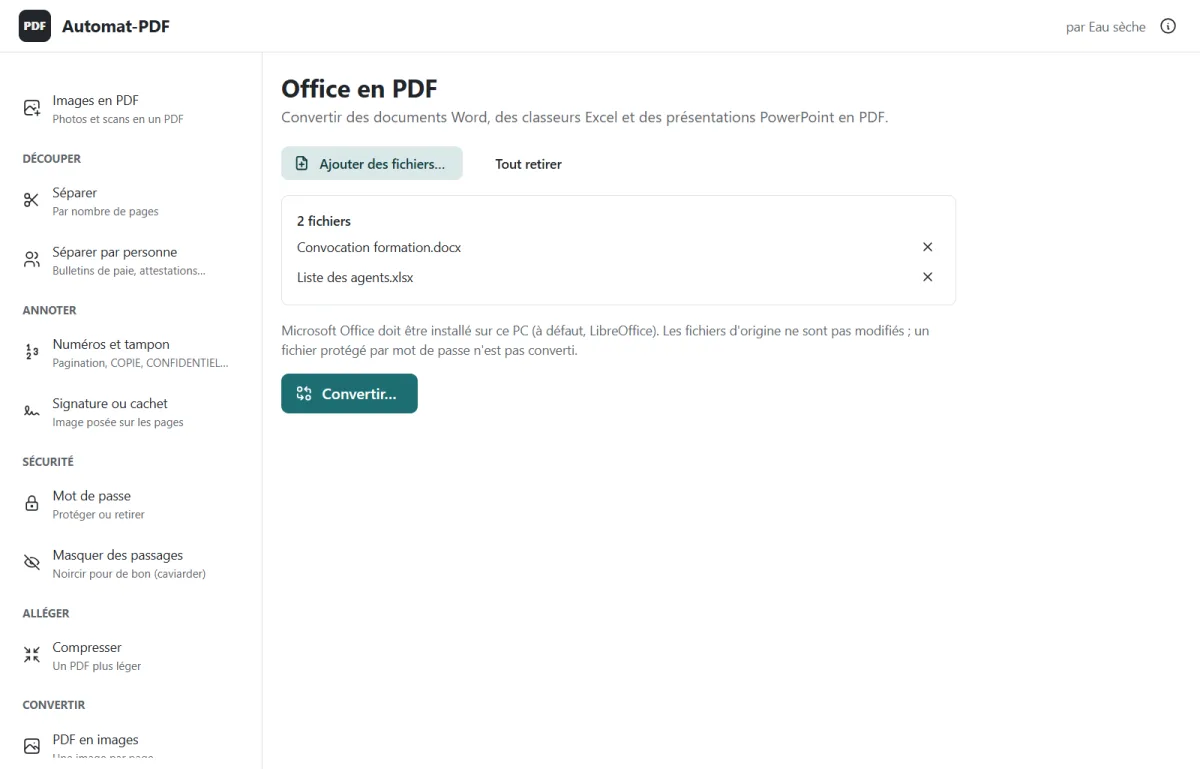
- Convertir… (Convert…), then choose the folder; progress is shown file by file.
Good to know
- The original files are not modified; a password-protected document is flagged, without blocking the others.
I need to edit a PDF I received The PDF becomes an editable Word document, even without Word. Tool: PDF en Word (PDF to Word)
The situation. You receive a PDF to correct or complete, without the original document.
The solution. PDF en Word turns it into an editable Word document (.docx): through Microsoft Word if it is installed, otherwise by Automat-PDF itself (editable text, images in place, tables in aligned columns).
Step by step
-
Drop the PDF on PDF en Word (or right-click → Automat-PDF → Convertir en Word).
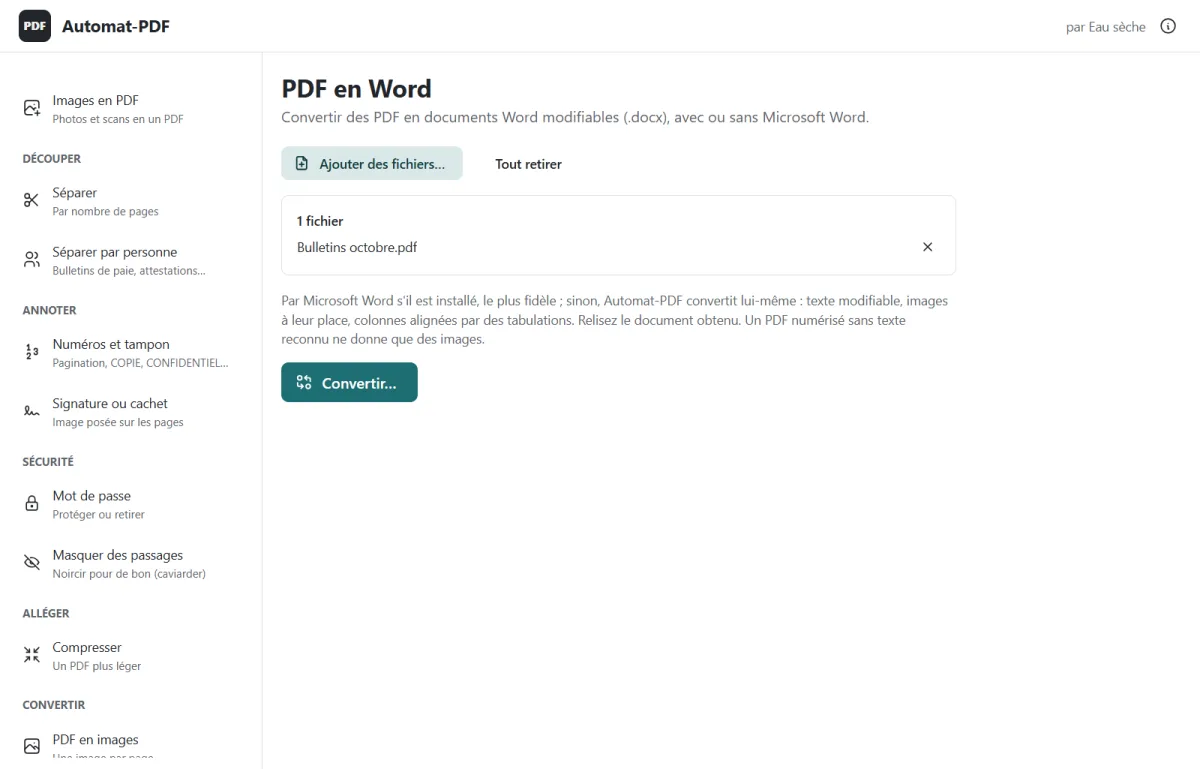
- Convertir… (Convert…), then open the resulting document and read it over.
Good to know
- A scanned PDF without recognised text only gives images.
I want to print with less paper, or make a booklet 2 or 4 pages per sheet, or a booklet to fold. Tool: Pages par feuille (Pages per sheet)
The situation. A long document to proofread on paper, a programme to fold into a booklet.
The solution. Pages par feuille puts 2 or 4 pages per A4 sheet, prepares a booklet (printed double-sided, folded in two, the pages follow on) or brings the pages back to A4 size.
Step by step
- Drop the PDF on Pages par feuille.
-
Choose the layout, illustrated by a diagram.
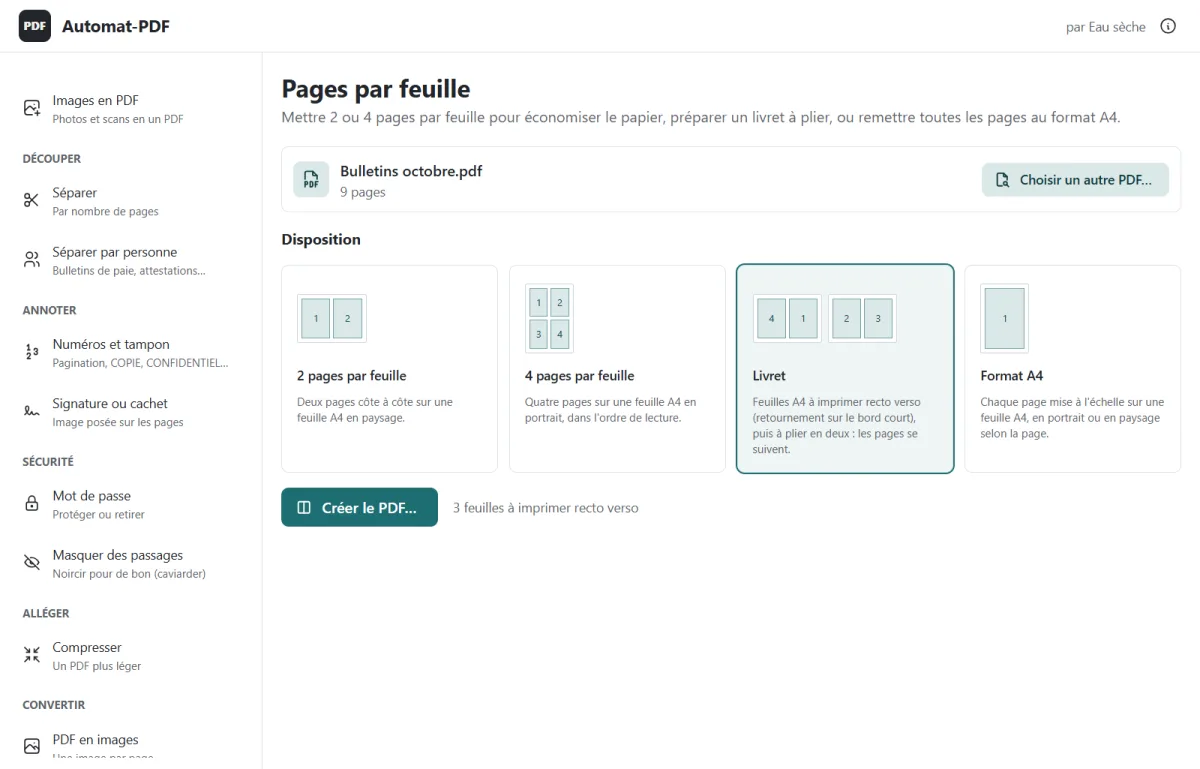
- Créer le PDF… (Create the PDF…), then print.
I need to cut a large PDF into several files One file per page, or every N pages, numbered or named from a list. Tool: Séparer (Split)
The situation. A batch of letters scanned together, a 200-page PDF to cut every 2 pages.
The solution. Séparer creates one file per page, or every N pages; the files are numbered, or named from an Excel list.
Step by step
- The PDF to split.
-
The cutting: one page per file, or every N pages.
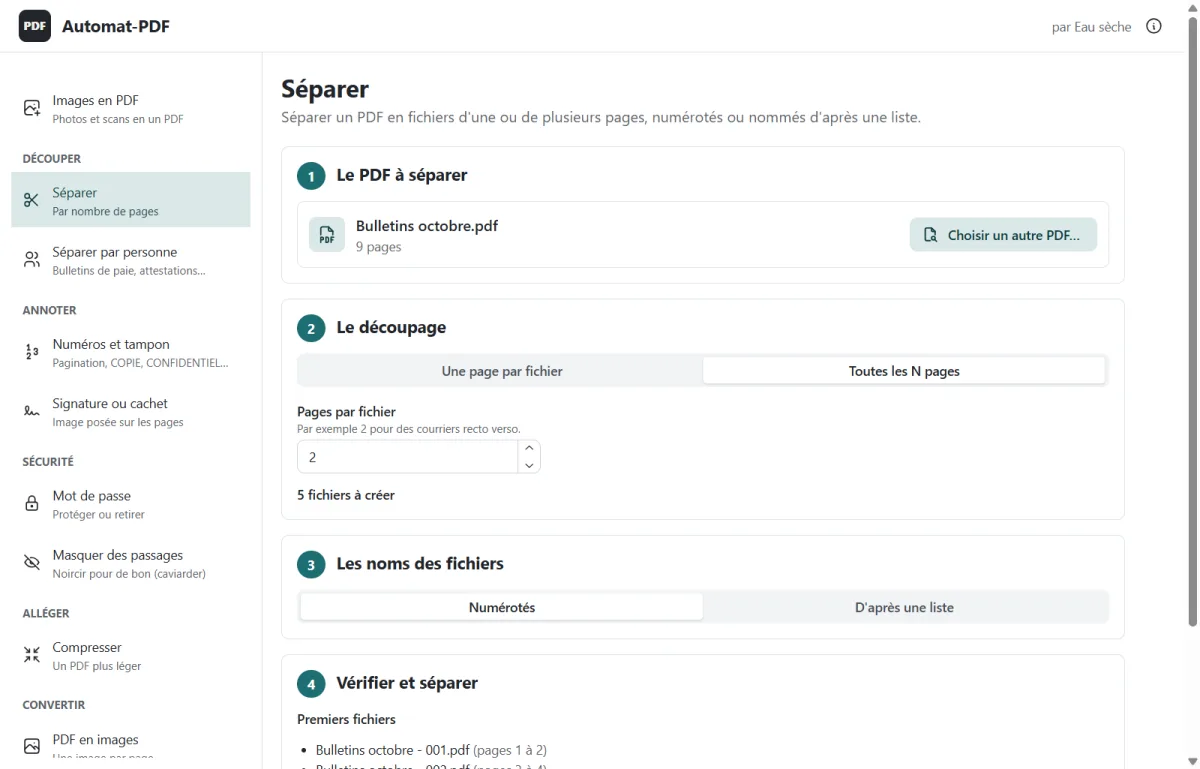
- The file names: numbered, or from a list.
- Check the first names, then Séparer… (Split…).
I want to publish a page as an image Each page as a PNG or JPG image, in screen or print quality. Tool: PDF en images (PDF to images)
The situation. A poster, a press release or a report page to publish on social networks or to insert into a presentation.
The solution. PDF en images saves each page, or the chosen pages, as a PNG or JPG image.
Step by step
- Drop the PDF on PDF en images.
-
Choose the pages, the format and the quality (screen, standard, print).
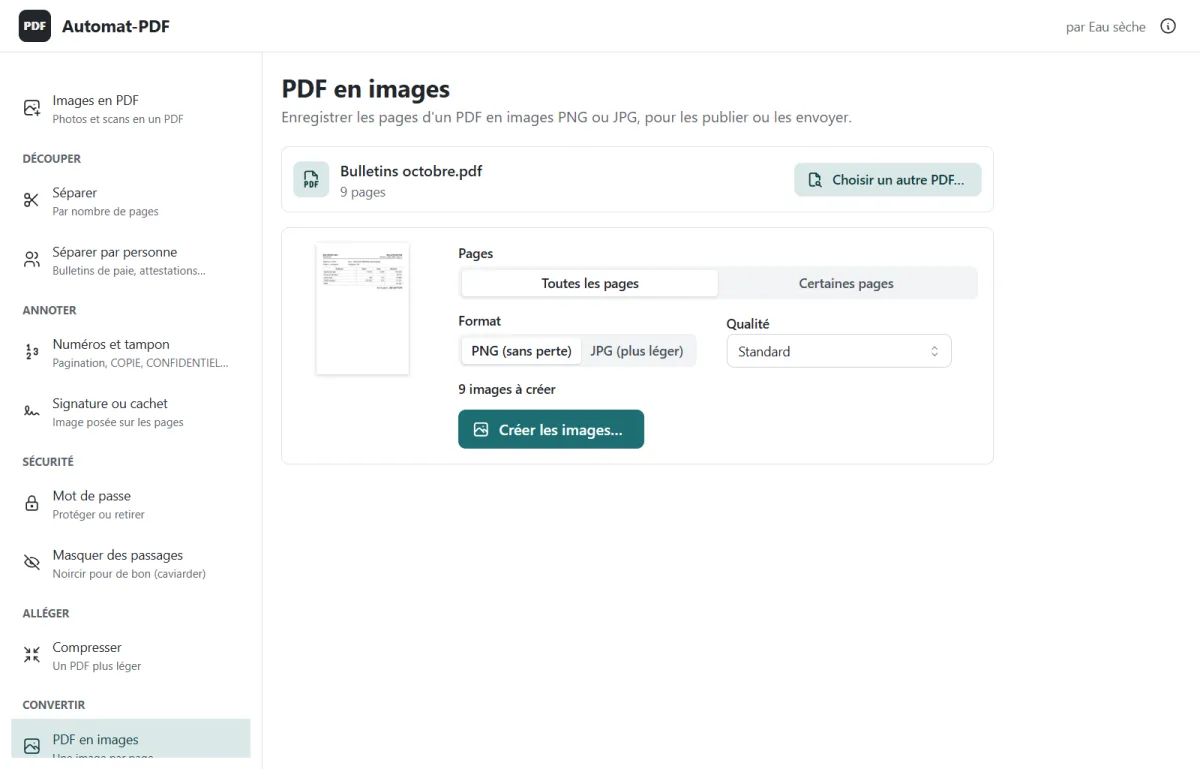
- Créer les images… (Create the images…)
Who is it for?
- Payroll and HR departments
- Secretarial and assistant work
- Accounting and accounting firms
- SME management
- Public administrations and local authorities
- Schools, universities, associations
- Independent professionals
From the right-click menu, in Windows Explorer
After installation, right-clicking a file in Windows Explorer offers the Automat-PDF submenu (on Windows 11: “Show more options”). Several files selected together open in a single window.
On a PDF
- Organiser les pages (Organise pages)
- Fusionner (Merge)
- Compresser (Compress)
- Protéger par un mot de passe (Protect with a password)
- Séparer par personne (Split by person)
- Convertir en Word (Convert to Word)
- Convertir en images (Convert to images)
On an image
- Mettre en PDF (Make a PDF)
On a Word, Excel or PowerPoint document
- Convertir en PDF (Convert to PDF)
Privacy
Your documents never leave your computer
Automat-PDF does not transmit any information to other networked systems, except at the express request of the user or of the person who installs or uses it.
- PDFs, lists and documents are processed on the computer, with no account, no advertising and no usage statistics.
- An email is only sent when the user asks for it, through their own mail service or Outlook.
- The mailbox password is kept by Windows (Credential Manager), never in a file.
- LibreOffice is only downloaded when the user clicks “Installer LibreOffice” (Install LibreOffice) and gives the administrator's approval.
- Original files are never modified.
- Open-source software: the code is public, anyone can check what it does.
Download and install
Automat-PDF 0.2.0
Released on 6 November 2026
- Size
- 4.5 MB
- System
- Windows 10 or 11, 64-bit; no Internet needed to work.
Automat-PDF_0.2.0_x64-setup.exe
The file is published on GitHub, where the software's source code also lives. All versions
Install in 3 steps
Download Automat-PDF_0.2.0_x64-setup.exe (4.5 MB) with the button above.
Open the file. Windows shows “Windows protected your PC”: click More info, then Run anyway (the installer is not digitally signed yet).
Installation takes a few seconds, for your account, with no administrator rights. Automat-PDF opens on “Que voulez-vous faire ?” (What do you want to do?).
Why does Windows show a warning?
The installer is not signed yet, so Windows shows a warning. Free code signing by SignPath Foundation, which signs open-source software, has been requested.
Check the downloaded file
In PowerShell, the command Get-FileHash .\Automat-PDF_0.2.0_x64-setup.exe should return this fingerprint:
e5eb8e81b0eb1137cd0a2bb543e2db194af9e009e52c82fb9873e34448c3a0d7
Going further
User reviews
Do you use Automat-PDF? Share your review
Every review is confirmed by its author from their email address, then read before publication: it is published as written, or not at all.
No reviews published yet. Be the first to share your experience.
Frequently asked questions
Is Automat-PDF really free?
Yes. It is open-source software (MIT licence): free, with no subscription, no advertising and no limit, including in companies and on several computers.
Are my documents sent over the Internet?
No. Everything is processed on your computer. Only the emails you decide to send leave it, through your own mail service or Outlook.
Do I need an Internet connection?
No, except to send emails, or to install LibreOffice if you ask for it.
Why does Windows show a warning during installation?
The installer is not digitally signed yet. Click More info, then Run anyway. To check the file, compare its SHA-256 fingerprint with the one published on the downloads page.
Do I need Microsoft Office?
No, for almost everything. To convert Word, Excel or PowerPoint documents to PDF, you need Microsoft Office or LibreOffice, which is free and which the application offers to install. For PDF to Word, Automat-PDF converts by itself if Word is missing.
Are my original files modified?
Never. Each result is a new file, offered next to the original.
Where do I find the file I just created?
Next to the original file, unless you choose another folder. The final box offers Ouvrir (Open) and Afficher dans le dossier (Show in folder).
My payslips are scanned: can I split them by person?
Only if the PDF contains text (a PDF produced by the payroll software, or a scan with text recognition). Otherwise, split by number of pages.
Which mail services can I use to send the payslips?
Gmail, Yahoo, your organisation's mail service, or Outlook (classic version) installed on the PC. Gmail and Yahoo require an “app password”. With Microsoft 365, preferably go through Outlook.
Is my mailbox password safe?
It is kept by the Windows Credential Manager, never written to a file.
Can I run a test before sending to everyone?
Yes: Envoyer l'essai (Send the test) sends the first message to your own address; the bulk send then asks for confirmation.
Is the signature I place legally binding?
Signature ou cachet places the image of your signature or stamp, as on a scanned document. It is not a certified electronic signature.
Does Automat-PDF work on a Mac or a phone?
No: Automat-PDF is distributed for Windows 10 and 11.
How do I update?
Download the new version from the downloads page and install it: it replaces the previous one.
Who develops Automat-PDF?
Eau sèche. Contact: +242 06 853 26 77 · dev@sitech-global.com.
Is the application available in English?
No: Automat-PDF's interface is in French only. This page gives the French labels of the buttons, with their translation in brackets, so you can find them on screen.
A question about Automat-PDF?
Email us, call us or message us on WhatsApp: we will answer you.