

An Automat-PDF tool
Send each employee their own payslip by email
« Send each employee their own payslip »
One PDF per employee, named, protected by their own password and sent to the right address: in a few minutes instead of several hours by hand.
Windows 10 and 11 · 4.5 MB · no administrator rights

The situation
Every month-end, the payroll software produces a single PDF with every employee's payslip. Then, for each person, their pages have to be found, saved as a file in their name, protected, and sent to the right address. By hand this takes hours, and one mistake is enough for an employee to receive a colleague's payslip: that is a personal data leak.
The solution
Séparer par personne (Split by person) does the whole job in 5 numbered steps, checks anything doubtful by itself, and lets you review before creating and sending.
Step by step
-
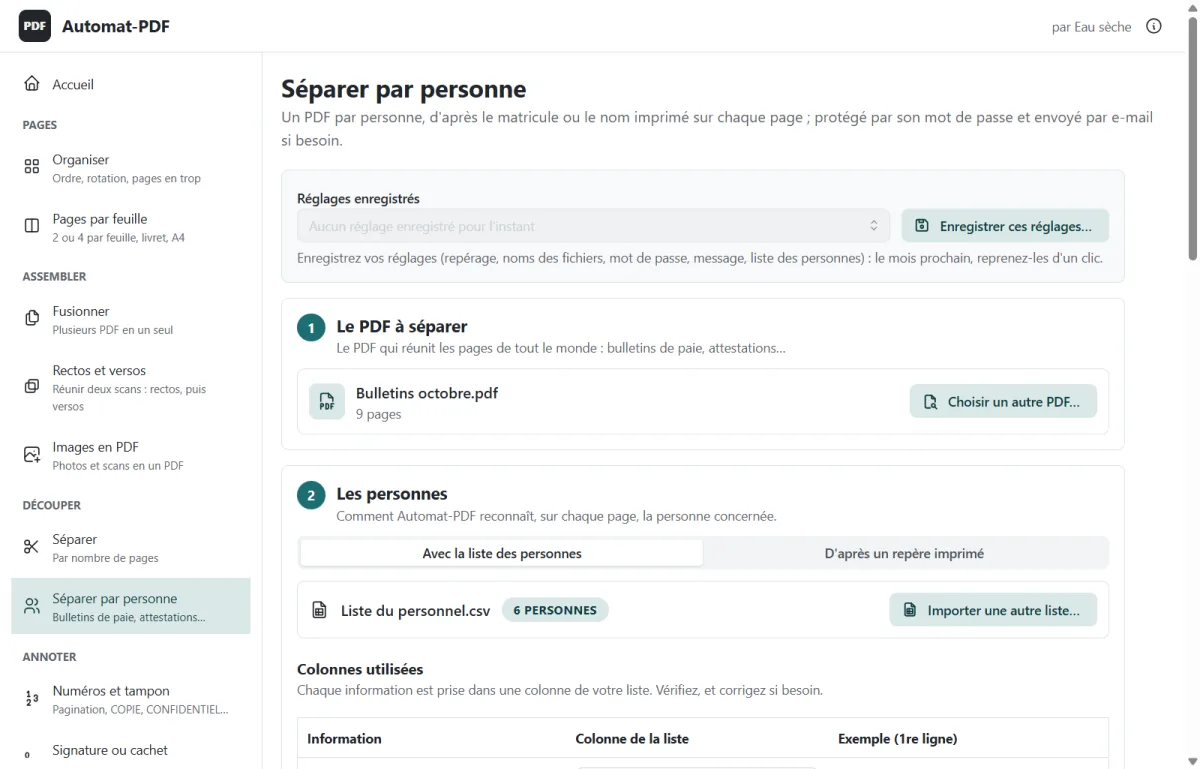
The PDF to split
Drag the payslips PDF into the window. Automat-PDF reads the text of each page.
-
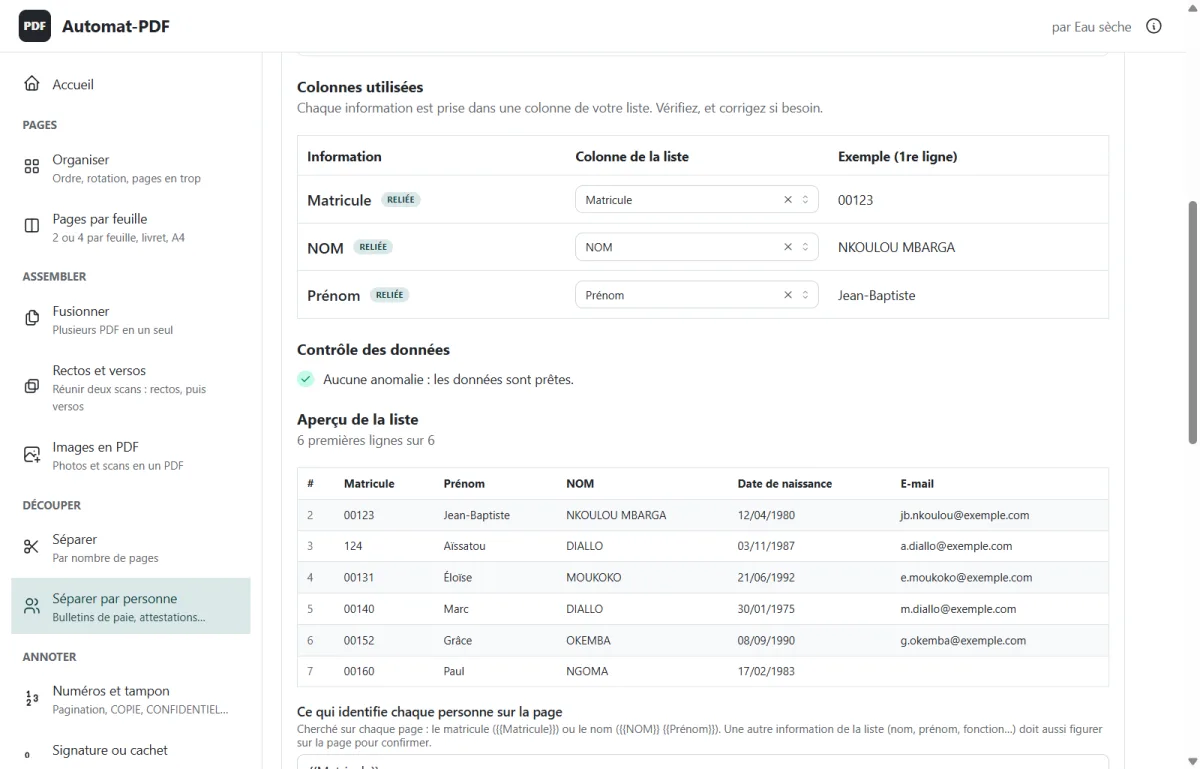
The people
Drag in the staff list (Excel or CSV, one row per person). Automat-PDF links each piece of information to the right column and checks the list: duplicates, malformed email addresses, empty cells.
-
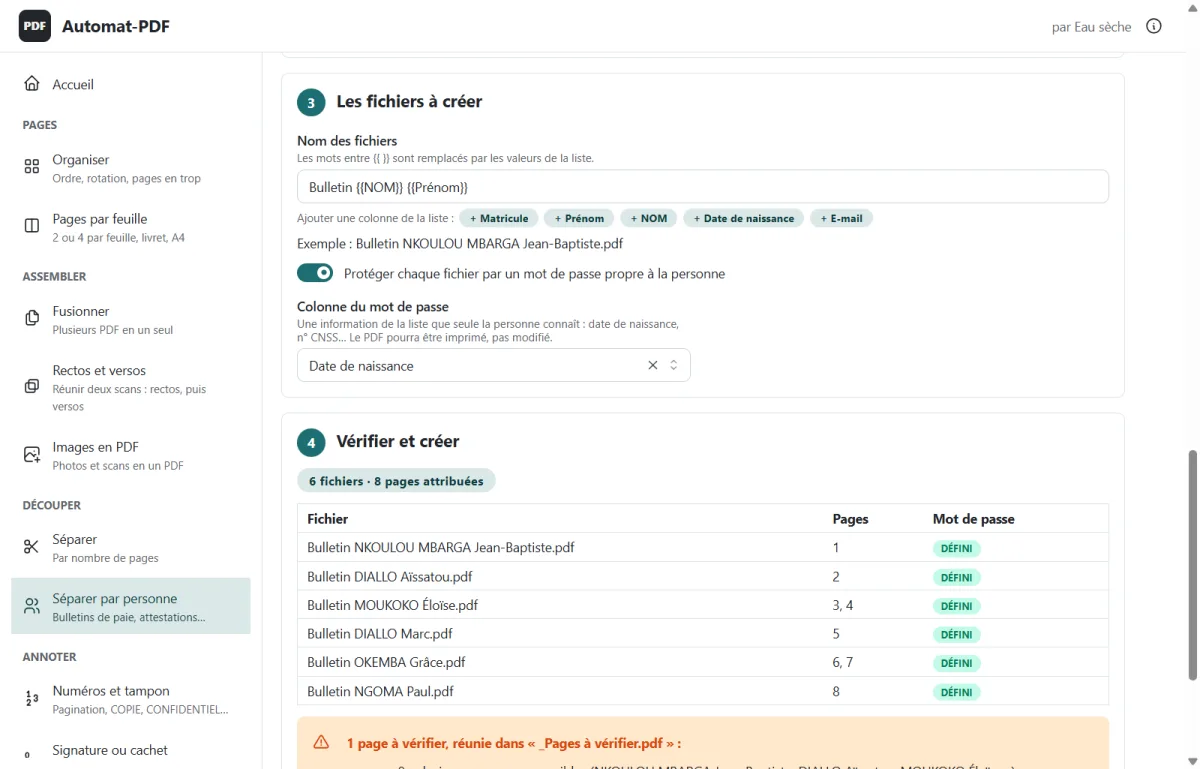
The files to create
Each file name comes from the list (“Bulletin NKOULOU MBARGA Jean-Baptiste.pdf”): add a column in one click and an example is shown. Turn on protection, then choose the password column, such as the date of birth.
-
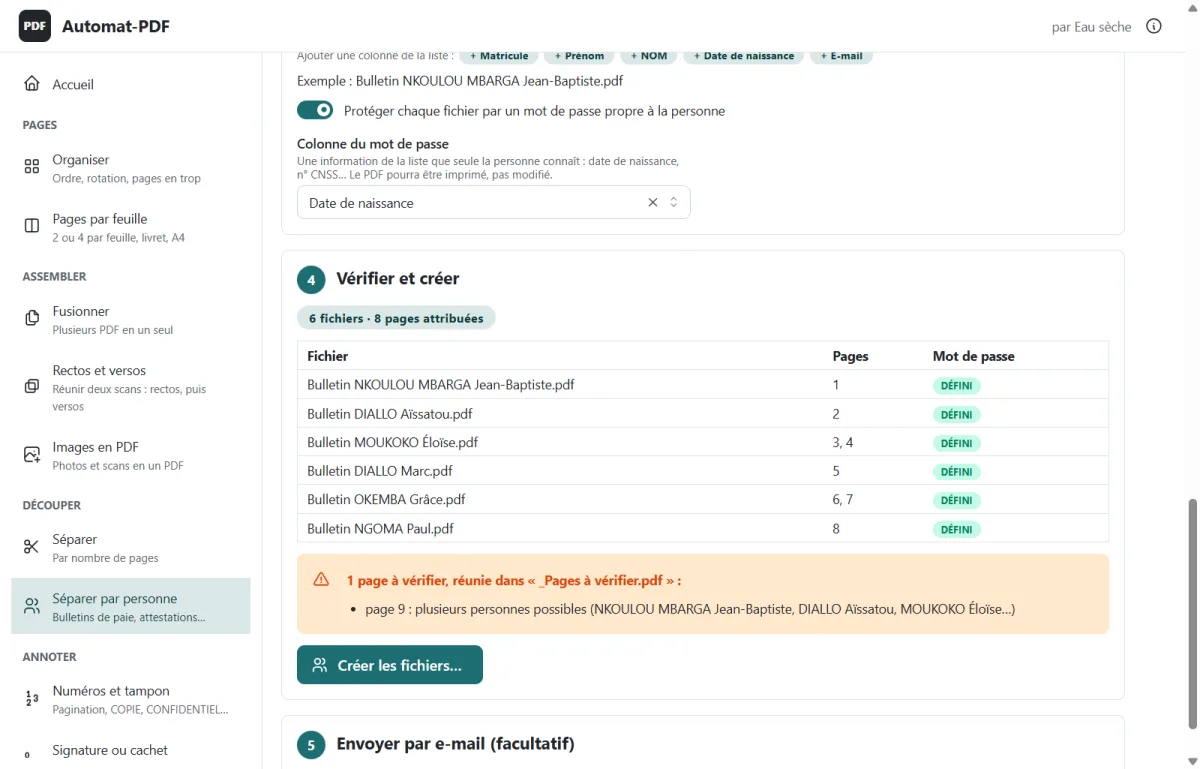
Check, then create
The table shows each file, its pages and the status of its password. Doubtful pages are flagged. Click Créer les fichiers… (Create the files…).
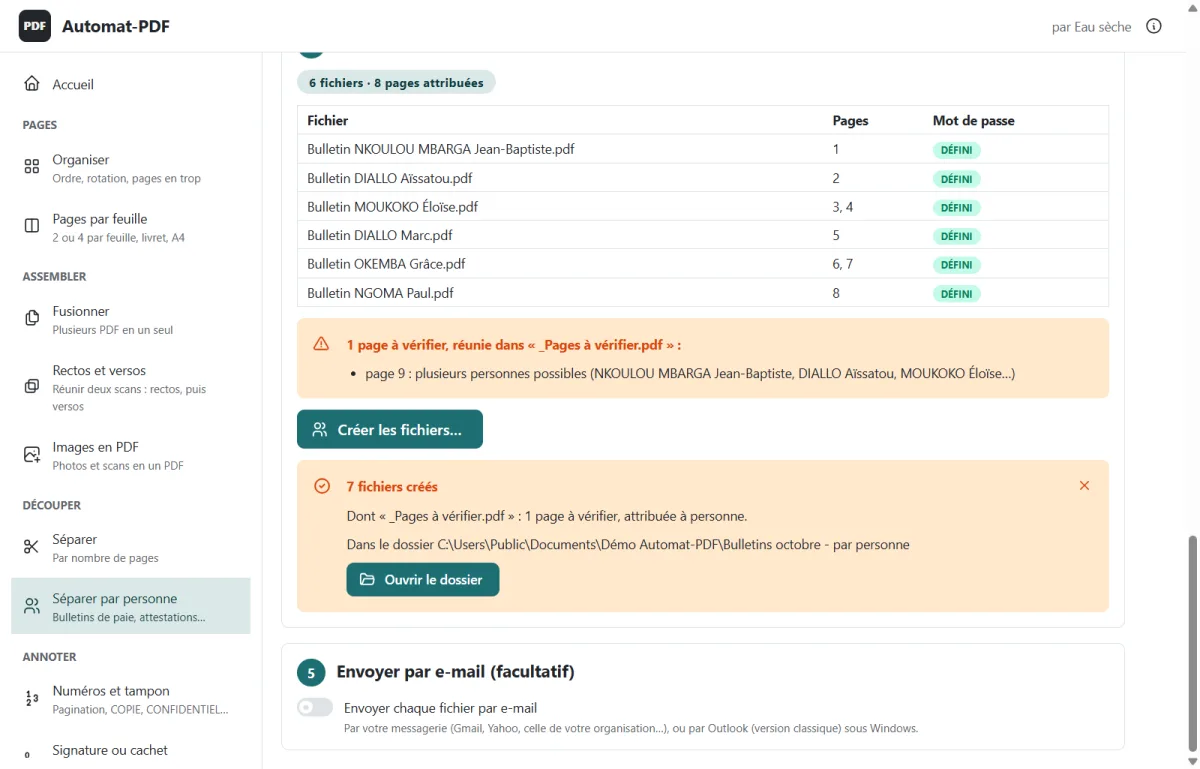
-
Send by email (optional)
Write the subject and the message once (“Bonjour {{Prénom}}, …”). First send a test to your own address, then the bulk send, after confirmation. Through Gmail, Yahoo, your organisation's mail service, or Outlook.
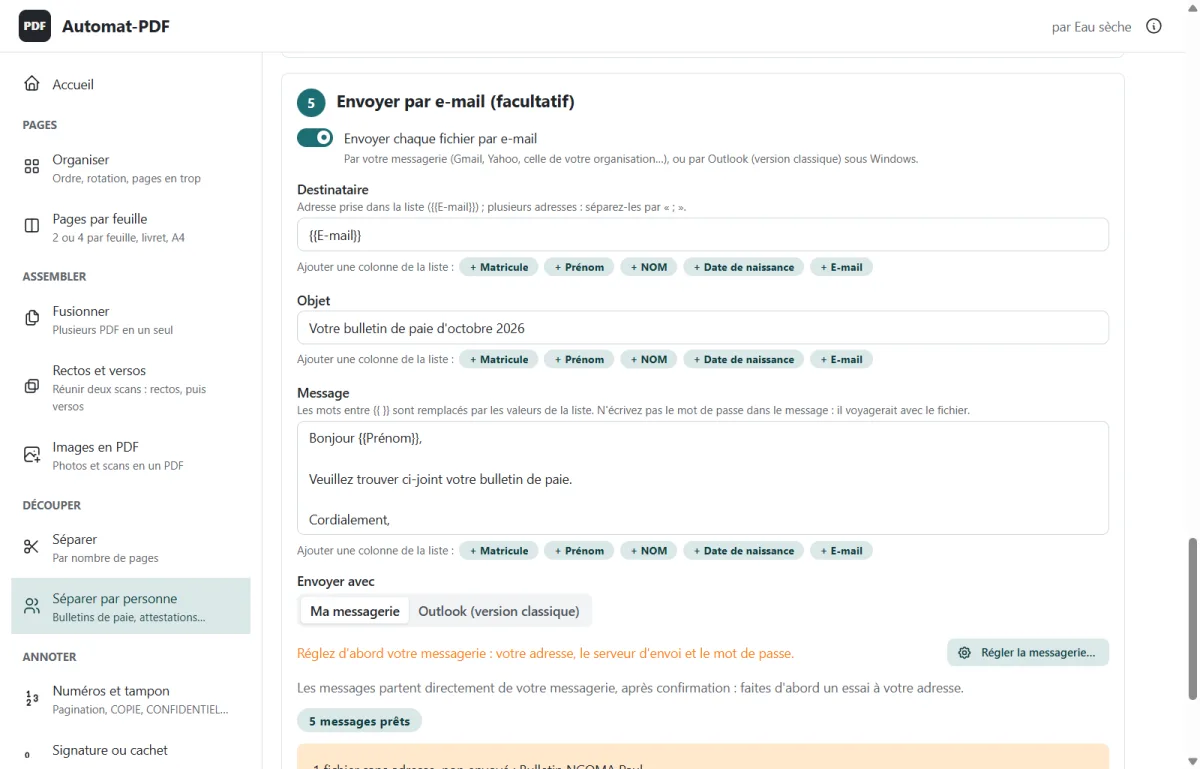
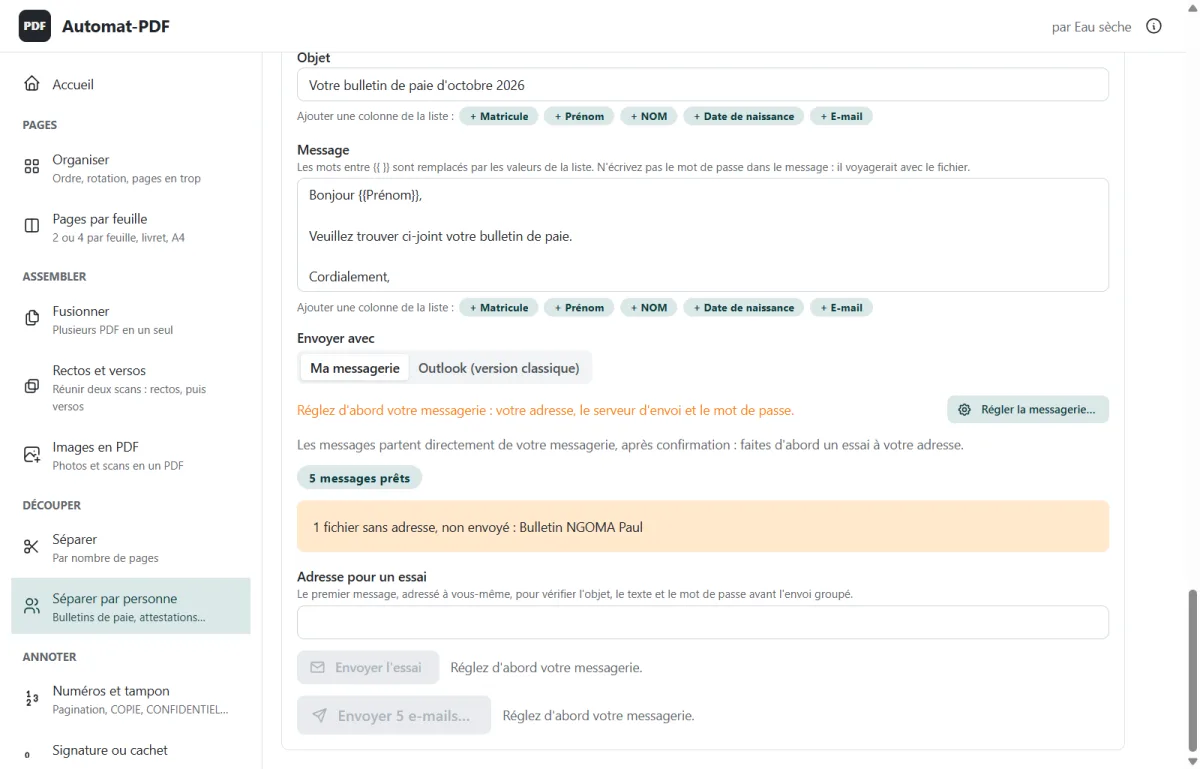
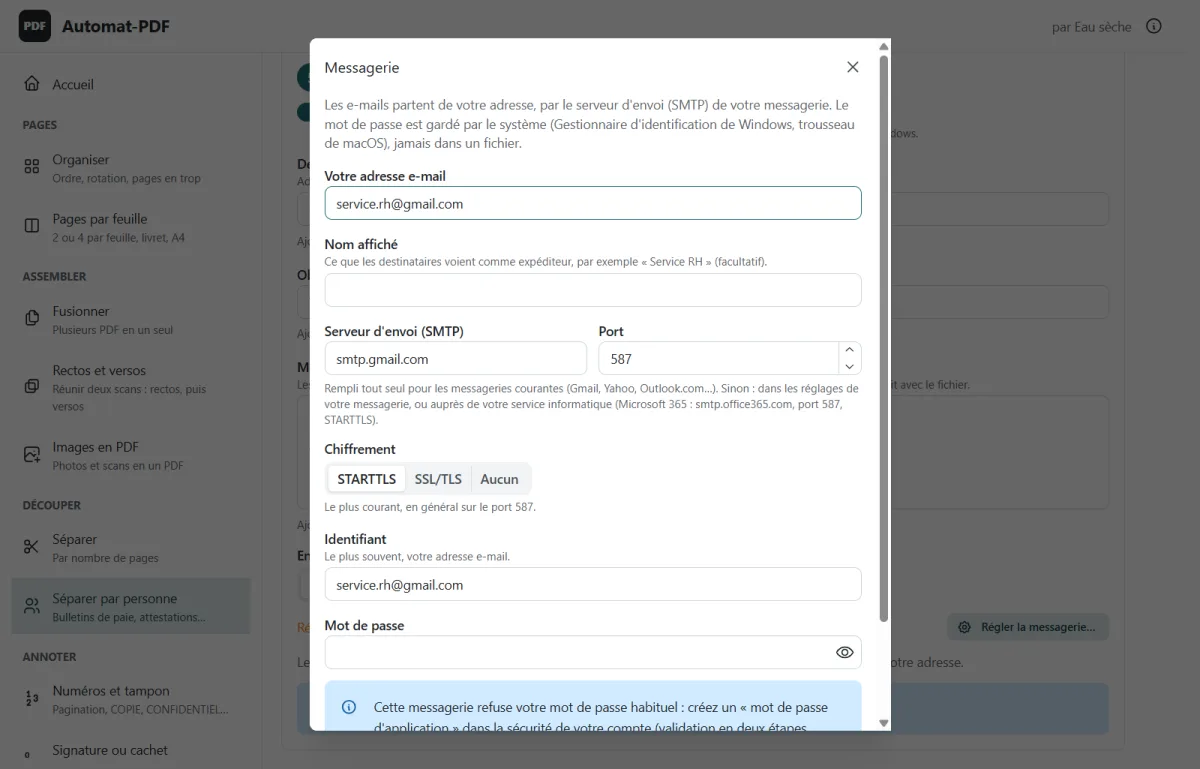
The result. A folder with one PDF per person, named and protected by their password, sent to the right address if you wish. The following month, Réglages enregistrés (Saved settings) brings everything back in one click.
The checks
- A page is only assigned to a person if their staff number (or name) and another of their details appear on the page.
- Doubtful pages (summary, page with no identifier) are sent to no one: they are gathered in “_Pages à vérifier.pdf”.
- The file's password does not travel with it: it is not put in the message.
- Nothing is sent without confirmation; files with no address are flagged.
- The mailbox password is kept by Windows, never in a file.
Good to know
- Works for any document where each page concerns an identifiable person: payslips, certificates, statements, notices…
- Without a list, Automat-PDF can rely on a marker printed on each page (“Matricule :”, the staff number).
- The PDF must contain text (as PDFs produced by payroll software do): a scanned PDF without text recognition can only be split by number of pages.
- Gmail and Yahoo require an “app password”; with Microsoft 365, sending through Outlook (classic version) is often simplest.
Screenshots of version 0.2.0, taken in the real application (in French); the names, amounts and addresses they show are fictitious.

Automat-PDF does this on your computer
Free, no subscription, no advertising, no Internet needed. Windows 10 and 11.
Other Automat-PDF tools
- Compress a PDF for WhatsApp or email Tool: Compresser (Compress)
- Merge several PDFs into one Tool: Fusionner (Merge)
- Reorder, rotate or delete PDF pages Tool: Organiser (Organise)
- Combine the fronts and backs of a scan into one PDF Tool: Rectos et versos (Fronts and backs)
- Turn photos into a single PDF Tool: Images en PDF (Images to PDF)
- Sign or stamp a PDF without printing it Tool: Signature ou cachet (Signature or stamp)
- Number PDF pages and stamp them COPY Tool: Numéros et tampon (Numbers and stamp)
- Redact information in a PDF Tool: Masquer des passages (Redact passages)
- Password-protect a PDF Tool: Mot de passe (Password)
- Convert Word, Excel or PowerPoint to PDF Tool: Office en PDF (Office to PDF)
- Convert a PDF to an editable Word document Tool: PDF en Word (PDF to Word)
- Print a PDF with 2 or 4 pages per sheet Tool: Pages par feuille (Pages per sheet)
- Split a PDF into several files Tool: Séparer (Split)
- Convert PDF pages to PNG or JPG images Tool: PDF en images (PDF to images)
Do you know someone this software would help?
Send them the link: Automat-PDF is free, and all they need is Windows 10 or 11.
A question about Automat-PDF?
Email us, call us or message us on WhatsApp: we will answer you.