

An Automat-PDF tool
Comment on a PDF: underline, strike out, stamp
« I need to review a PDF and add my remarks before sending it back »
Underline, strike out, circle, stamp, write a note: your remarks are listed alongside, with those already in the PDF.
Windows 10 and 11 · 5.3 MB · no administrator rights
macOS 11 or later · 13 MB · Intel and Apple silicon Macs
Windows will show a warning: this is expected. When you open the file, click More info, then Run anyway (the installer is not digitally signed yet). See it in pictures
macOS will show a warning: this is expected. At first launch, click Done, then, in System Settings › Privacy & Security, click Open Anyway (the application is not notarised by Apple yet). See it in pictures


The situation
A contract, a quote or a report arrives for review. You have to show what must change, mark what is approved, then send the document back. Often, it already carries a colleague's remarks, to be updated or removed.
The solution
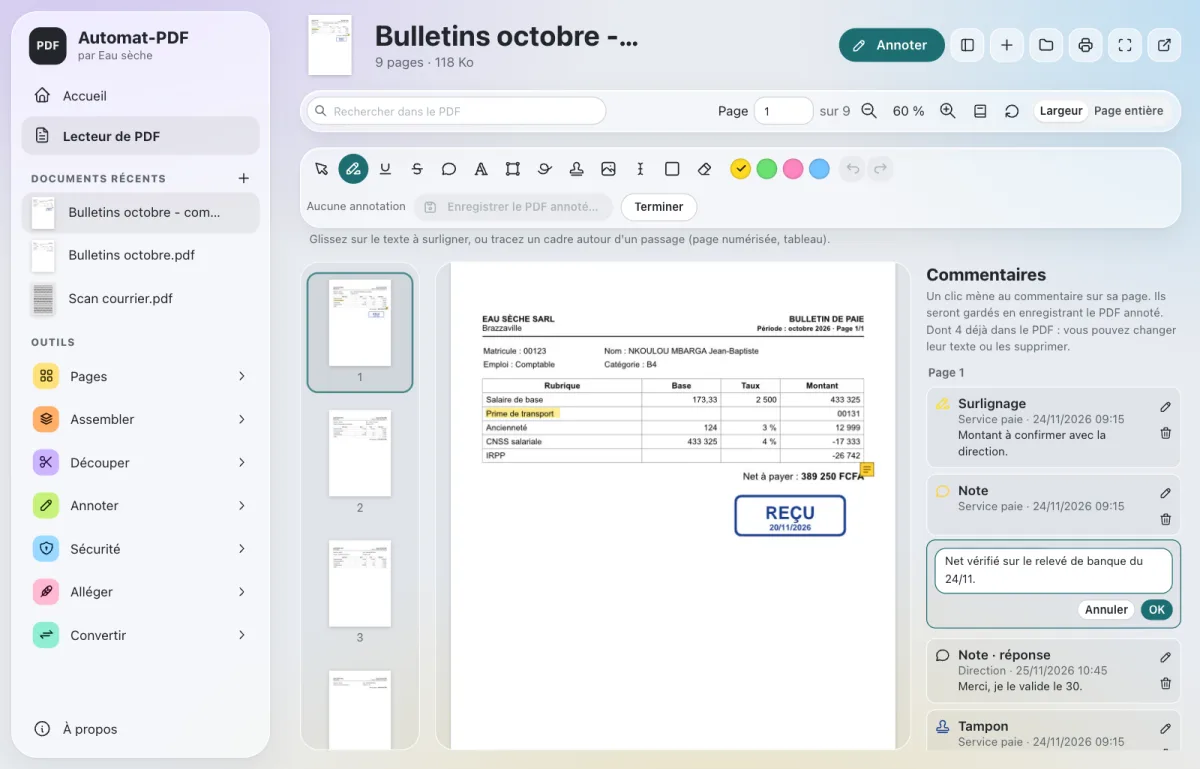
Since version 0.6.0, the reader's editor (the Annoter, Annotate, button) has the review tools: Souligner (Underline), Barrer (Strike out), Formes (Shapes: rectangle, ellipse, line, arrow), Dessin à main levée (Freehand drawing) and Tampon (Stamp: APPROUVÉ, PAYÉ, REÇU, VU, COPIE, CONFIDENTIEL, ANNULÉ, URGENT), along with Surligner (Highlight) and Note. The Commentaires (Comments) list, on the right, shows them page by page, with those the PDF already contained: their author, their date and their text.
Step by step
-
Open the PDF in the reader, then click Annoter (Annotate).
-
Choose a tool, then drag over the text (Souligner, Barrer, Surligner: Underline, Strike out, Highlight) or over the page (Formes, Dessin à main levée: Shapes, Freehand drawing); a click places a Note or a Tampon (Stamp). Each remark is added to the Commentaires (Comments) list: a click takes you to it, the bin removes it.
-
The comments already in the PDF are shown there too, with their author and date: change their text (the pencil) or delete them. The page is redrawn at once, and Ctrl+Z brings them back.
-
Enregistrer le PDF annoté… (Save the annotated PDF…): a new PDF, next to the original, with all the comments.
The result. On a test PDF received with 4 comments from the “Service paie” (payroll department) and the “Direction” (management): each one is listed with its author and date; a note is rewritten, the stamp deleted, then the annotated PDF saved. The original keeps its 4 comments.
Good to know
- They are real PDF annotations, readable in Acrobat, Edge or Preview.
- The underlined or struck-out text is kept in the comment: the list quotes it.
- Shapes and drawings: three colours (red, navy blue, black) and three thicknesses. A stamp can carry today's date (Avec la date, With the date); in Sélection (Select), its handle changes its size.
- The original is never modified: a comment is changed or deleted only in the saved annotated PDF.
- A text box already written on the page of a received PDF cannot be edited from the list: delete it, then write another one with the Texte (Text) tool.
- An APPROUVÉ (Approved) or PAYÉ (Paid) stamp is an annotation, like a rubber stamp: it is not an electronic signature.
Screenshots of version 0.7.0: the application's screens (in French), with the results it gives on test files. The names, amounts and addresses they show are fictitious.

Automat-PDF does this on your computer
Free, no subscription, no advertising, no Internet needed. Windows 10 and 11, macOS 11 or later.
Other Automat-PDF tools
- Send each employee their own payslip by email Tool: Séparer par personne (Split by person)
- Read a PDF and search it for a word Tool: Lecteur de PDF (PDF reader)
- Print a PDF in colour or in black and white Tool: Imprimer (Print)
- Correct a word or an amount in a PDF Tool: Éditeur de PDF (PDF editor)
- Fill in a PDF form without printing it Tool: Formulaires (Forms)
- Check the signature of a signed PDF you received Tool: Signatures numériques (Digital signatures)
- Compress a PDF for WhatsApp or email Tool: Compresser (Compress)
- Merge several PDFs into one Tool: Fusionner (Merge)
- Reorder, rotate or delete PDF pages Tool: Organiser (Organise)
- Combine the fronts and backs of a scan into one PDF Tool: Rectos et versos (Fronts and backs)
- Turn photos into a single PDF Tool: Images en PDF (Images to PDF)
- Sign or stamp a PDF without printing it Tool: Signature ou cachet (Signature or stamp)
- Number PDF pages and stamp them COPY Tool: Numéros et tampon (Numbers and stamp)
- Redact information in a PDF Tool: Masquer des passages (Redact passages)
- Password-protect a PDF Tool: Mot de passe (Password)
- Convert Word, Excel or PowerPoint to PDF Tool: Office en PDF (Office to PDF)
- Convert a PDF to an editable Word document Tool: PDF en Word (PDF to Word)
- Print a PDF with 2 or 4 pages per sheet Tool: Pages par feuille (Pages per sheet)
- Split a PDF into several files Tool: Séparer (Split)
- Convert PDF pages to PNG or JPG images Tool: PDF en images (PDF to images)
Do you know someone this software would help?
Send them the link: Automat-PDF is free, for Windows 10 and 11 and for Mac (macOS 11 or later).
A question about Automat-PDF?
Email us, call us or message us on WhatsApp: we will answer you.