

An Automat-PDF tool
Capture part of a PDF page as an image
« I want to keep a photo or a passage from a PDF »
A frame on the page: copy it, or save it as an image or a PDF.
Windows 10 and 11 · 5.6 MB · no administrator rights
macOS 11 or later · 14 MB · Intel and Apple silicon Macs
Windows will show a warning: this is expected. When you open the file, click More info, then Run anyway (the installer is not digitally signed yet). See it in pictures
macOS will show a warning: this is expected. At first launch, click Done, then, in System Settings › Privacy & Security, click Open Anyway (the application is not notarised by Apple yet). See it in pictures


The situation
A photo in a report, a table in a quote, a paragraph and its illustration: that part of the page is what you need, for an email, a presentation or a WhatsApp message.
The solution
Since version 0.9.0, the reader's Capturer (Capture) button takes the part of the page you frame. You copy it to paste elsewhere, or save it as an image (PNG or JPG) or as a PDF. The PDF keeps only the frame, its text included: what lies around it is really removed from the file.
Step by step
-
Open the PDF in the reader, then click Capturer (Capture), next to Annoter (Annotate).
-
Draw a frame around what you want to keep: around it, the page darkens, and the bar gives the size of the frame.
-
Click Copier l'image (Copy image) or Copier le texte (Copy text), then paste wherever you like; or Enregistrer l'image… (Save image…) or Enregistrer en PDF… (Save as PDF…).
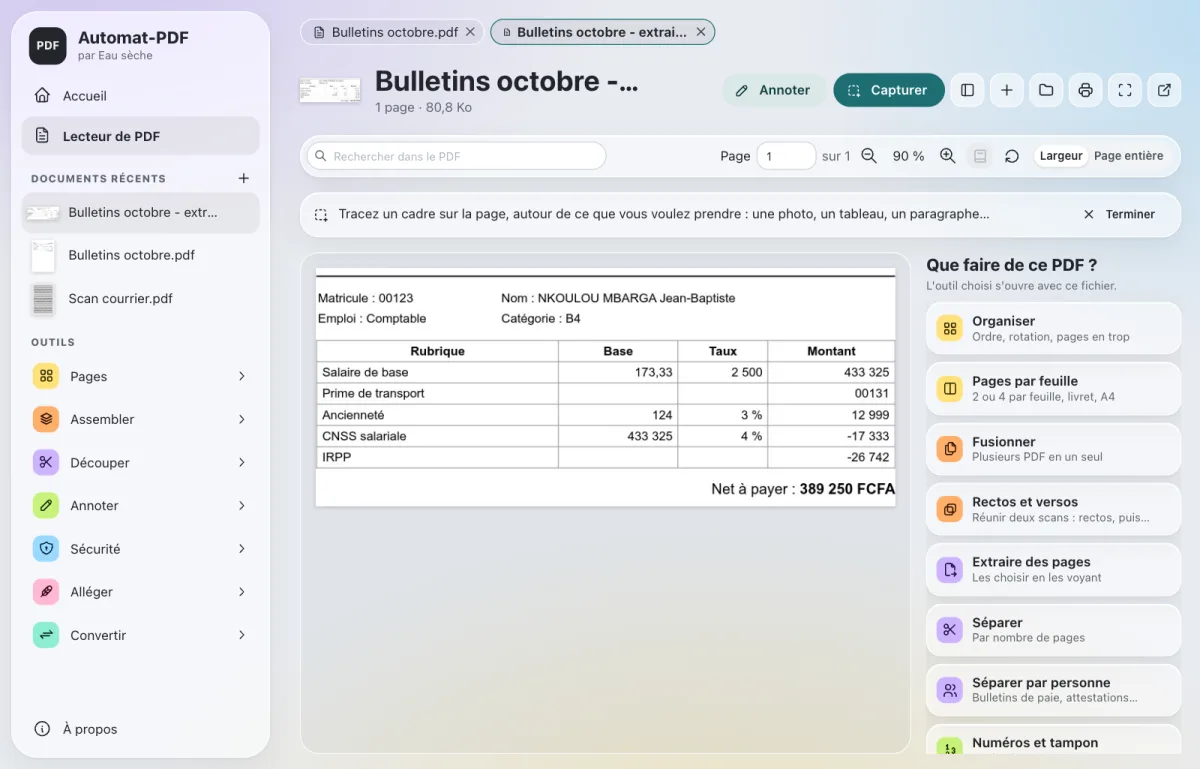
The result. On a test payslip, an 18.1 × 7.4 cm frame gives a 2,134 × 878 pixel image in standard quality (300 dpi), and a one-page PDF that shows only this frame, its text still selectable.
Good to know
- Three image qualities: screen (150 dpi), standard (300 dpi) and print (600 dpi).
- Copier le texte (Copy text) takes the words of the frame, line by line. On a scanned page, recognise its text first: see “This PDF is a scan…” (Reconnaître le texte, Recognise text).
- For a whole photo, at its original quality: right-click it, see “I want to get the photos out of a PDF”.
- The original PDF is not modified.
Screenshots of version 0.9.0: the application's screens (in French), with the results it gives on test files. The names, amounts and addresses they show are fictitious.

Automat-PDF does this on your computer
Free, no subscription, no advertising, no Internet needed. Windows 10 and 11, macOS 11 or later.
Other Automat-PDF tools
- Send each employee their own payslip by email Tool: Séparer par personne (Split by person)
- Read a PDF and search it for a word Tool: Lecteur de PDF (PDF reader)
- Make a scanned PDF searchable (OCR) Tool: Reconnaître le texte (Recognise text)
- Scan paper documents to PDF Tool: Numériser (Scan)
- Print a PDF in colour or in black and white Tool: Imprimer (Print)
- Comment on a PDF: underline, strike out, stamp Tool: Commentaires (Comments)
- Correct a word or an amount in a PDF Tool: Éditeur de PDF (PDF editor)
- Fill in a PDF form without printing it Tool: Formulaires (Forms)
- Check the signature of a signed PDF you received Tool: Signatures numériques (Digital signatures)
- Compress a PDF for WhatsApp or email Tool: Compresser (Compress)
- Merge several PDFs into one Tool: Fusionner (Merge)
- Reorder, rotate or delete PDF pages Tool: Organiser (Organise)
- Extract one or more pages from a PDF Tool: Extraire des pages (Extract pages)
- Crop a PDF and remove its margins Tool: Recadrer les pages (Crop pages)
- Combine the fronts and backs of a scan into one PDF Tool: Rectos et versos (Fronts and backs)
- Turn photos into a single PDF Tool: Images en PDF (Images to PDF)
- Sign or stamp a PDF without printing it Tool: Signature ou cachet (Signature or stamp)
- Number PDF pages and stamp them COPY Tool: Numéros et tampon (Numbers and stamp)
- Redact information in a PDF Tool: Masquer des passages (Redact passages)
- Password-protect a PDF Tool: Mot de passe (Password)
- Convert Word, Excel or PowerPoint to PDF Tool: Office en PDF (Office to PDF)
- Convert a PDF to an editable Word document Tool: PDF en Word (PDF to Word)
- Save the text of a PDF as a text file Tool: PDF en texte (PDF to text)
- Print a PDF with 2 or 4 pages per sheet Tool: Pages par feuille (Pages per sheet)
- Split a PDF into several files Tool: Séparer (Split)
- Convert PDF pages to PNG or JPG images Tool: PDF en images (PDF to images)
- Extract the images of a PDF Tool: Extraire les images (Extract images)
Do you know someone this software would help?
Send them the link: Automat-PDF is free, for Windows 10 and 11 and for Mac (macOS 11 or later).
A question about Automat-PDF?
Email us, call us or message us on WhatsApp: we will answer you.